In classic Outlook, go to File > Account Settings > Account Settings > Data Files. Select the Outlook Data File (PST) and choose Open File Location. If Outlook will not open, search File Explorer for *.pst or check Documents\Outlook Files and AppData\Local\Microsoft\Outlook. Amrev Outlook Email Recovery also provides a Find PST button on its first screen.
Find the data file through Outlook
This is the quickest method when classic Outlook opens normally:
- Open Outlook and choose File.
- Select Account Settings, then Account Settings again.
- Open the Data Files tab.
- Select the file you want to locate.
- Choose Open File Location.
Outlook opens File Explorer with the data file selected. Note the complete path before closing the window. If several files are listed, the check mark identifies the default data file, but an older PST may contain the folders you actually need.
Check the common PST locations
When Outlook will not open, begin with these folders. Replace YourName with your Windows account name:
C:\Users\YourName\Documents\Outlook Files\
C:\Users\YourName\AppData\Local\Microsoft\Outlook\
The AppData folder is hidden by default. In Windows 11 File Explorer, choose View > Show > Hidden items. You can also type %localappdata%\Microsoft\Outlook into the File Explorer address bar and press Enter.
Older archives may be stored elsewhere. Check external drives, backup folders, previous Windows user profiles, and any folder you selected when exporting Outlook data.
Search Windows for every PST file
Open File Explorer, select This PC, and enter *.pst in the search box. Searching the complete computer takes longer than searching a user folder, especially when several drives are connected.
After the search finishes, switch to Details view and compare:
- File name
- Folder location
- File size
- Date modified
- Available backup copies
- Whether Outlook already has the file open
Do not assume the newest file is correct. An archive that has not changed for years may still contain the missing mailbox folders.
Make sure the file is PST, not OST
A PST and OST can both appear as an Outlook data file in Windows, but they serve different purposes. A PST is commonly used for POP mail, exports, archives, and data opened separately in Outlook. An OST is an offline copy of a Microsoft 365, Exchange, Outlook.com, or IMAP mailbox.
| File type | What it normally contains | Use with this product |
|---|---|---|
| PST | Local mailbox, archive, export, or POP account data | Yes; select the existing PST for recovery |
| OST | Offline synchronized copy of a server mailbox | No; this recovery workflow requires a PST |
Turn on file-name extensions in File Explorer using View > Show > File name extensions. This prevents a similarly named OST from being mistaken for the PST you want to recover.
Do not copy the file while Outlook is writing to it. Exit Outlook, confirm that OUTLOOK.EXE has closed, and then make a copy in a separate local folder. Use the copy for repair or recovery.
Find the PST with Amrev Outlook Email Recovery
If you do not know the file location, open Amrev Outlook Email Recovery and choose Find PST beside the Source file box. Use the results to identify available PST files, then select the copy you want to scan.
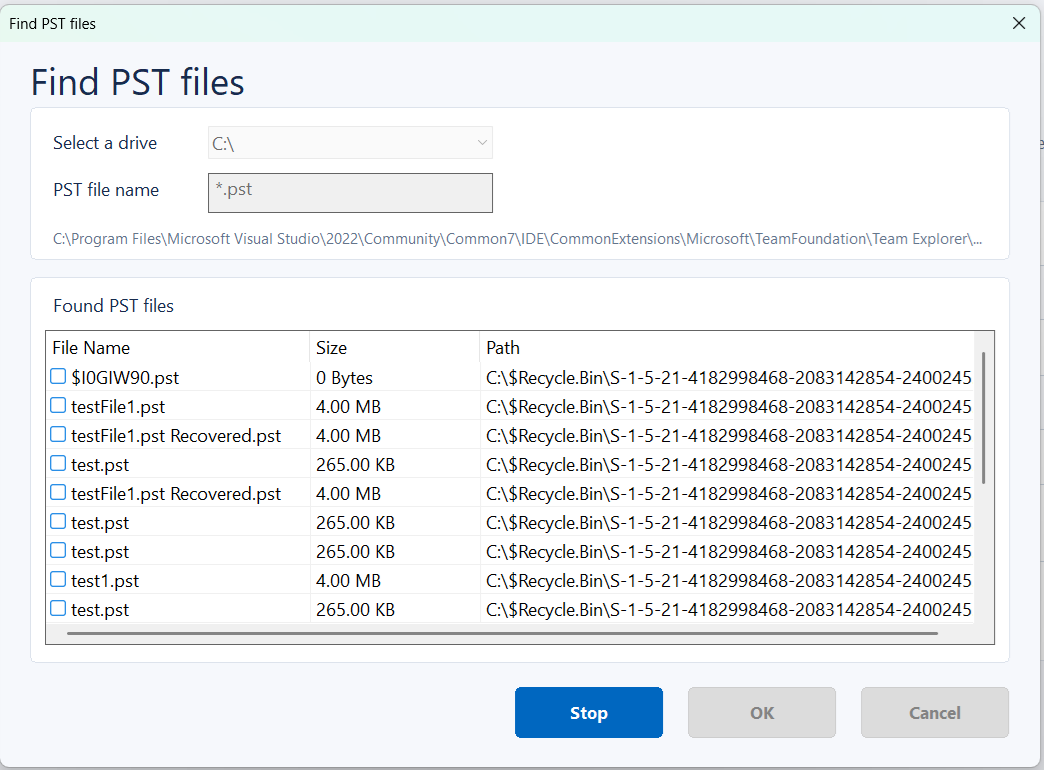
Before starting recovery, choose a separate destination folder and select Normal or Intensive Scan. The program automatically creates a new PST in that destination. With the full version, the new PST contains the recovered mailbox data. The PST created by the trial contains no actual recovered Outlook items.
Use Find PST from the recovery screen
Locate available PST files, choose a copied source, and inspect the recovery result.
How to identify the correct PST
When several files have generic names such as Outlook.pst, archive.pst, or backup.pst, open copies one at a time. Compare folder names and message dates rather than relying only on the filename.
A large modified date gap can be useful: the active PST normally changes while Outlook is in use, while an archive may remain unchanged. File size can also help, but it does not prove which mailbox a file contains. Keep each original and give working copies descriptive names such as old-profile-copy.pst or archive-2022-copy.pst.
Frequently asked questions
Where does Outlook normally store PST files?+
Common locations are Documents\Outlook Files and AppData\Local\Microsoft\Outlook under the Windows user profile. A PST can also be stored in any folder selected by the user.
How can I find a PST without opening Outlook?+
Search This PC for *.pst in File Explorer, check the common folders, or use the Find PST option in Amrev Outlook Email Recovery.
Why can I see an OST but no PST?+
Microsoft 365, Exchange, Outlook.com, and IMAP accounts commonly use an OST as an offline synchronized copy. A PST may not exist unless one was created for an archive, export, POP account, or separately opened data file.
Can I move a PST to another folder?+
Yes, but close Outlook first. After moving it, open the PST from its new location or update the Outlook profile so it no longer points to the old path.
Should I scan the original PST or a copy?+
Use a copy whenever possible. Keep the original unchanged and choose a different destination for the recovered PST.