Close Outlook and confirm that the Outlook Data File (PST) still exists at the expected location. Make sure it is on a local drive, is not read-only, and is accessible to your Windows account. End any remaining OUTLOOK.EXE process, then try opening the PST from File > Open & Export > Open Outlook Data File. If Outlook still cannot open it, copy the PST and try ScanPST for minor damage or scan the copy with Amrev Outlook Email Recovery to create a new PST containing recoverable mailbox data.
Confirm that the Outlook Data File (PST) exists
When Outlook remembers an old path, it can report that the data file cannot be opened even though the PST itself is healthy. In File Explorer, browse to the path shown in the error and confirm that the file is present.
If Outlook can start, go to File > Account Settings > Account Settings > Data Files. Check the path listed for the affected data file. If the PST was renamed or moved, remove the broken reference only after locating the correct file, then open it from its new location.
C:\Users\YourName\Documents\Outlook Files\
C:\Users\YourName\AppData\Local\Microsoft\Outlook\
Check the location, permissions, and file lock
Move the PST to a local folder
Do not open an active PST from a network share, cloud-sync folder, USB drive, or another removable location. Close Outlook, copy the file to a local folder such as Documents\Outlook Files, and try the local copy.
Check read-only and Windows permissions
Right-click the PST, choose Properties, and clear Read-only if it is selected. On the Security tab, confirm that your Windows account can read and write the file. If the PST came from another computer, the General tab may also show an Unblock option.
Make sure Outlook has fully closed
Open Task Manager and check for OUTLOOK.EXE. End the remaining process only after confirming that Outlook is not saving or synchronizing data. Restarting Windows is the safest way to clear an uncertain file lock.
Test the Outlook profile and open the PST manually
A damaged Outlook profile can produce a data-file error even when the PST is readable. In Windows Control Panel, open Mail > Show Profiles and create a test profile. Start Outlook with that profile, then choose File > Open & Export > Open Outlook Data File.
If the PST opens in the test profile, the original Outlook profile—not the data file—was probably the problem. Keep the working profile and reconnect accounts carefully rather than repairing a healthy PST.
Close Outlook and create a copy of the inaccessible data file. Run ScanPST or Amrev against the copy whenever possible, and save recovered data to another destination.
Try Microsoft ScanPST for minor damage
Classic Outlook includes the Inbox Repair Tool, SCANPST.EXE. It checks the PST’s internal structure and repairs errors it recognizes. Common locations include:
C:\Program Files\Microsoft Office\root\Office16\SCANPST.EXE
C:\Program Files (x86)\Microsoft Office\root\Office16\SCANPST.EXE
Open ScanPST, browse to the copied PST, and choose Start. If it reports errors, keep the backup option enabled and choose Repair. Microsoft notes that the tool may need to run more than once. Afterward, try opening the repaired copy in the test Outlook profile.
Recover mailbox data when Outlook still cannot open the PST
If access checks and structural repair do not make the file usable, scan the copied PST with Amrev. The application reads the source and creates a separate PST at the destination selected before scanning.
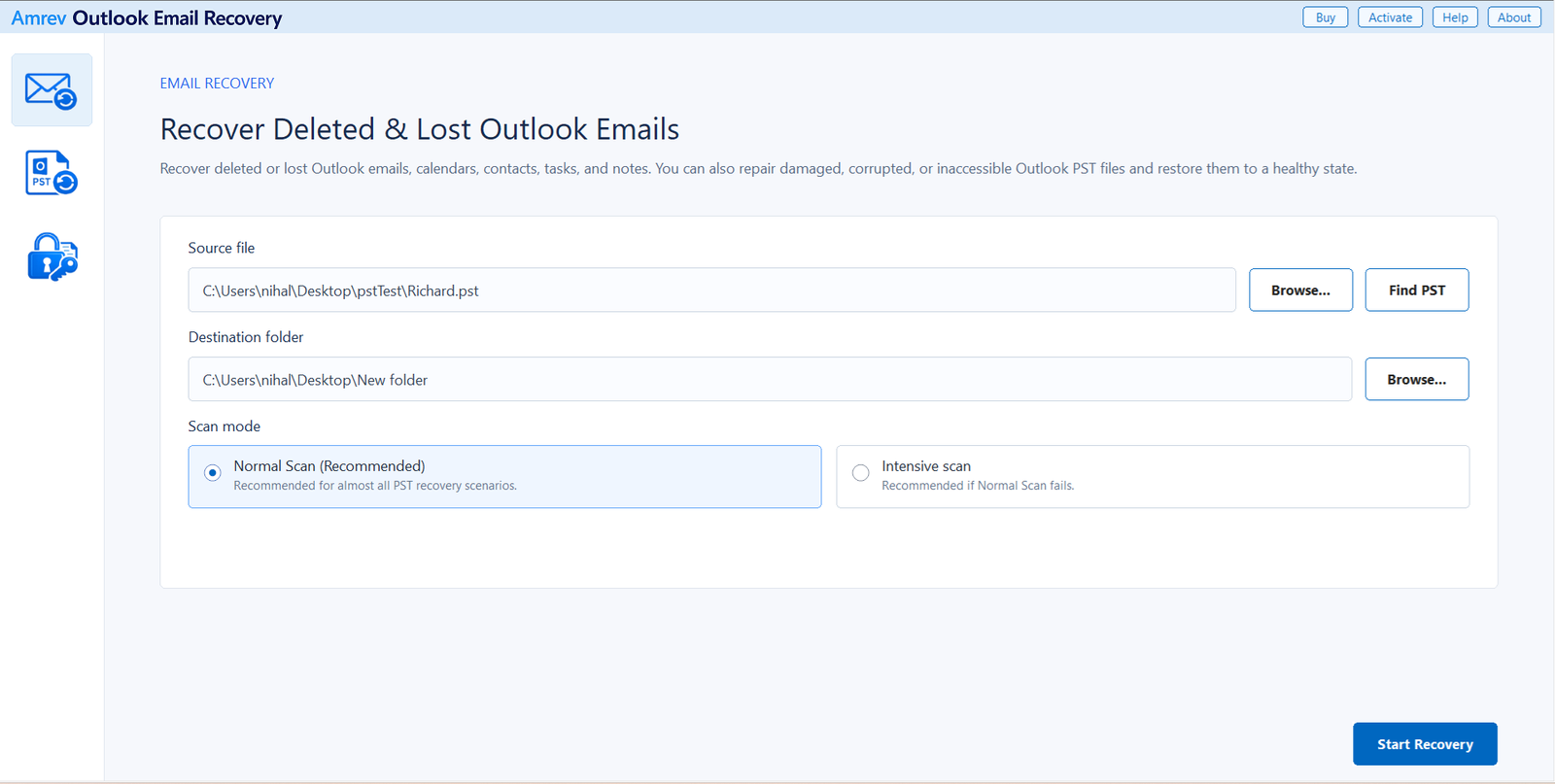
Select the inaccessible PST and destination
Open Amrev Outlook Email Recovery and choose Browse beside Source file. Select the copied PST, or use Find PST if necessary. Choose a separate destination folder for the recovered PST. Begin with Normal Scan; use Intensive Scan if the file is severely damaged or the first result is incomplete.
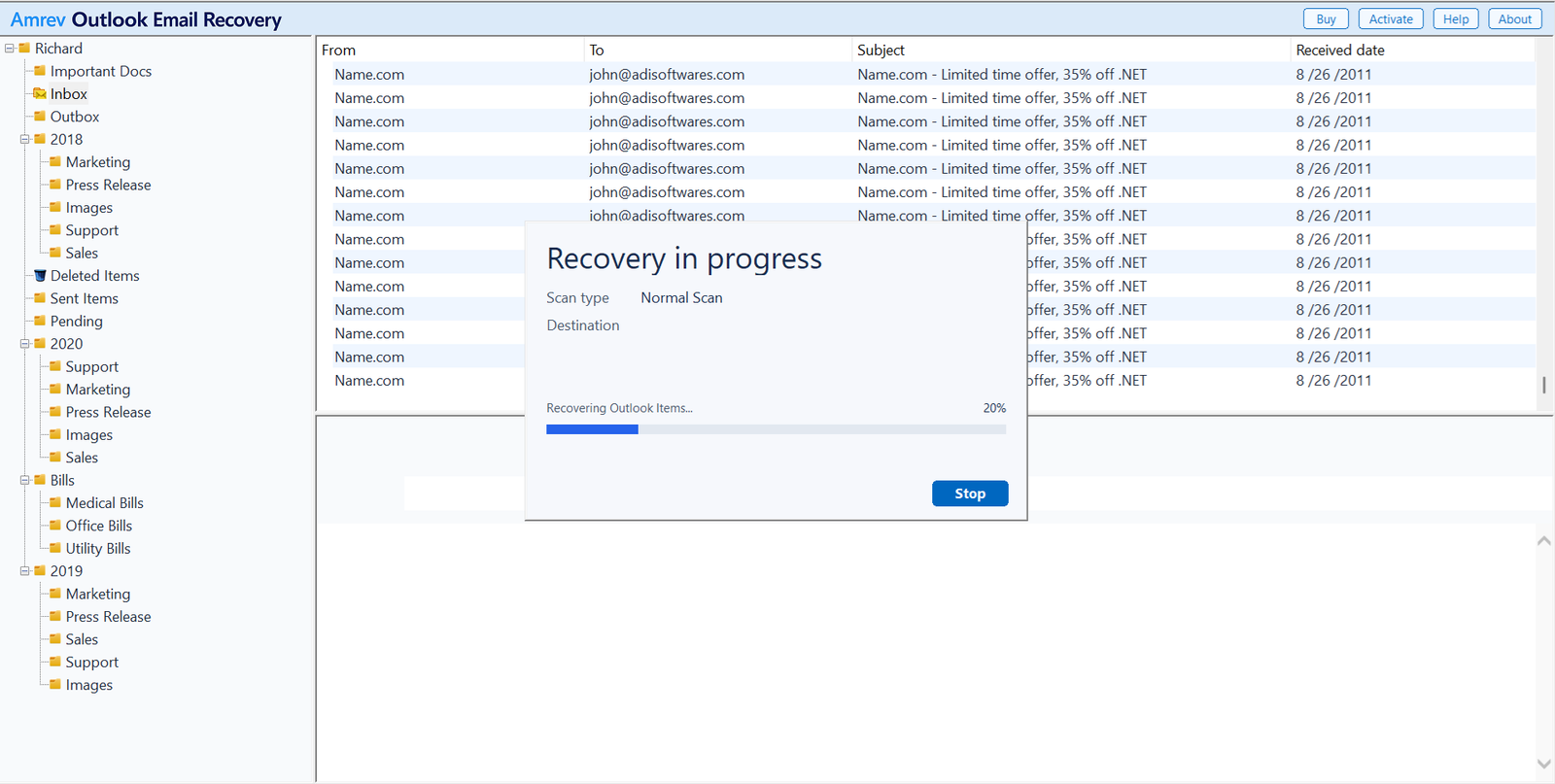
Run the recovery scan to completion
Choose Start Recovery. Folders and messages appear as the file is read. Let the scan finish before judging the result; damaged areas may separate recoverable folders across different parts of the PST.
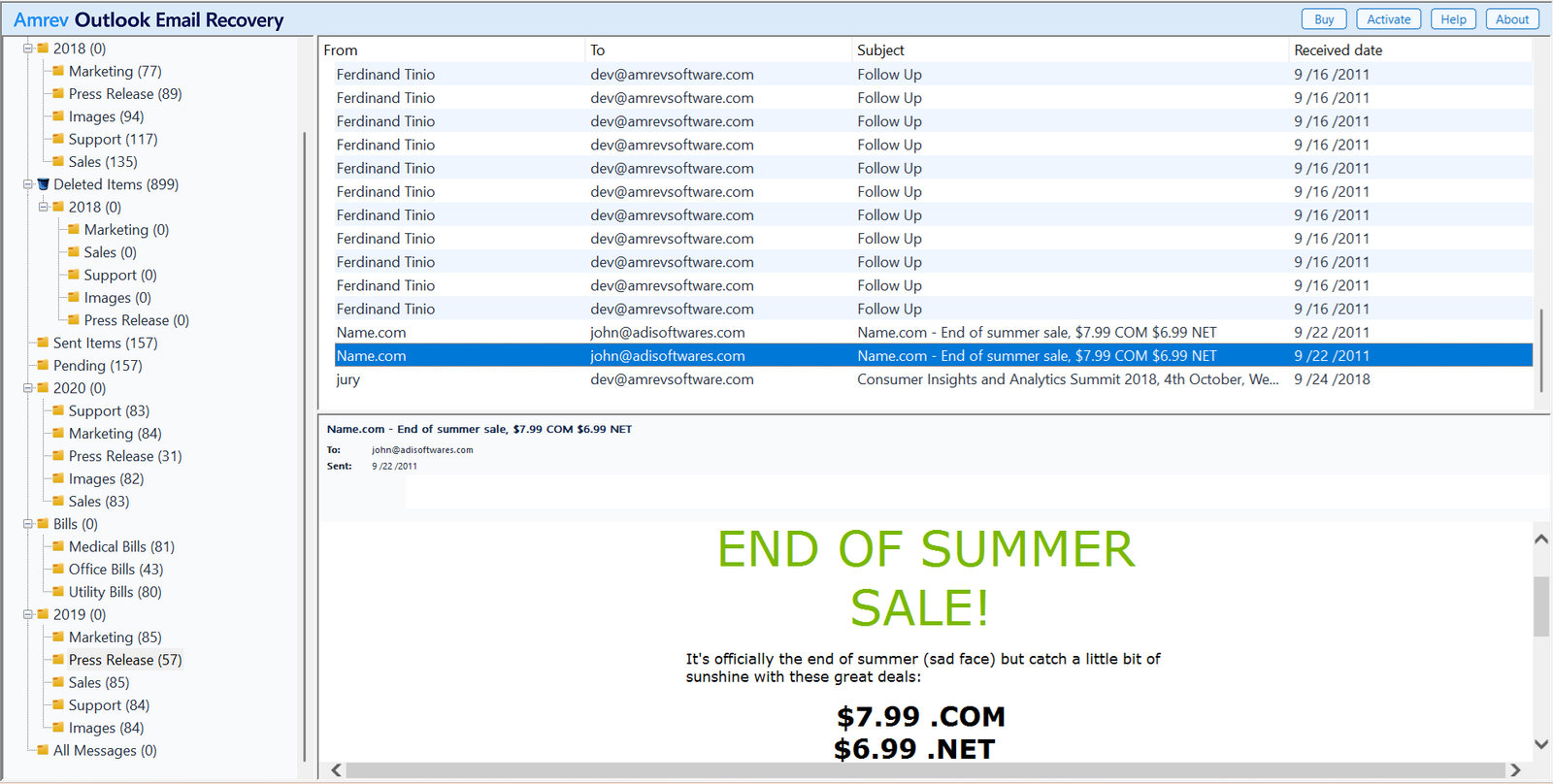
Inspect the recovered mailbox
Expand Inbox, Sent Items, Deleted Items, and important custom folders. Open messages from several dates and check attachments. Also inspect contacts, calendars, tasks, and notes if they were stored in the inaccessible PST.
Open the automatically created PST
When recovery finishes, the new PST is already in the destination selected in Step 1. There is no separate save command. The full version writes recovered mailbox items to that file. The PST created by the trial contains no actual recovered Outlook items.
Scan a copy of your Outlook Data File (PST)
The trial can show the recovery result, but its generated PST contains no actual Outlook items. The full version creates the PST with recovered mailbox data.
What the error usually indicates
| What you see | What to check first |
|---|---|
| The file path does not exist | Locate the moved or renamed PST and open it manually. |
| Access denied or permission error | Copy the PST locally and check read-only and Security properties. |
| The set of folders cannot be opened | Test another Outlook profile, then check the PST for damage. |
| Outlook freezes while opening the file | Close Outlook, copy the PST, and attempt repair or recovery. |
| The repaired PST still will not open | Scan the copied source with Amrev and inspect recoverable data. |
Frequently asked questions
Why can Outlook no longer open my PST?+
The PST may have moved, become read-only, remained locked by an Outlook process, lost Windows permissions, or developed structural damage after a crash.
Can Outlook open a PST from a network drive?+
An active PST should be kept on a reliable local drive. Copy it locally before opening, repairing, or recovering it.
Will creating a new Outlook profile delete the PST?+
No, but do not remove the old profile until you have located and copied its data files. Open the existing PST manually in the test profile.
Should I use Normal Scan or Intensive Scan?+
Start with Normal Scan. Use Intensive Scan if the result is incomplete or the PST is severely damaged.
Does the trial PST contain recovered mailbox data?+
No. The trial can scan the PST and show the recovery result, but its generated PST contains no actual Outlook items. The full version writes recovered mailbox data to the new PST.