Close Outlook and make a copy of the password-protected Outlook Data File (PST). Open Password Recovery in Amrev Outlook Email Recovery, browse to the copied PST, and choose Recover Password. Copy an available recovered password, open the PST in Outlook, and paste the password when prompted. Use this process only for a data file you own or are authorized to access.
Confirm that Outlook is asking for the PST password
Outlook can request several different credentials. A PST password prompt is attached to a local Outlook Data File. It is not the same as:
- Your Microsoft account password
- Your Microsoft 365 or Exchange sign-in
- Your Windows account password
- An email account app password
- A BitLocker drive recovery key
- A password for an encrypted attachment
If Outlook is asking you to sign in to an online account, use the account provider’s password-reset process. Amrev Password Recovery is intended for password protection applied to an existing PST.
Find and copy the protected Outlook Data File (PST)
If Outlook opens far enough, go to File > Account Settings > Account Settings > Data Files. Select the affected PST and choose Open File Location. Close Outlook before copying the file.
If Outlook will not open, check the common locations below or use Amrev’s Find PST option:
C:\Users\YourName\Documents\Outlook Files\
C:\Users\YourName\AppData\Local\Microsoft\Outlook\
Keep the original untouched and use the copy for password recovery. This is especially important if the PST is old, stored on removable media, or has previously produced errors.
Use this feature only for a PST you own or have explicit permission to access. Keep recovered passwords private and do not include them in screenshots, support requests, or shared documents.
Recover the Outlook Data File password
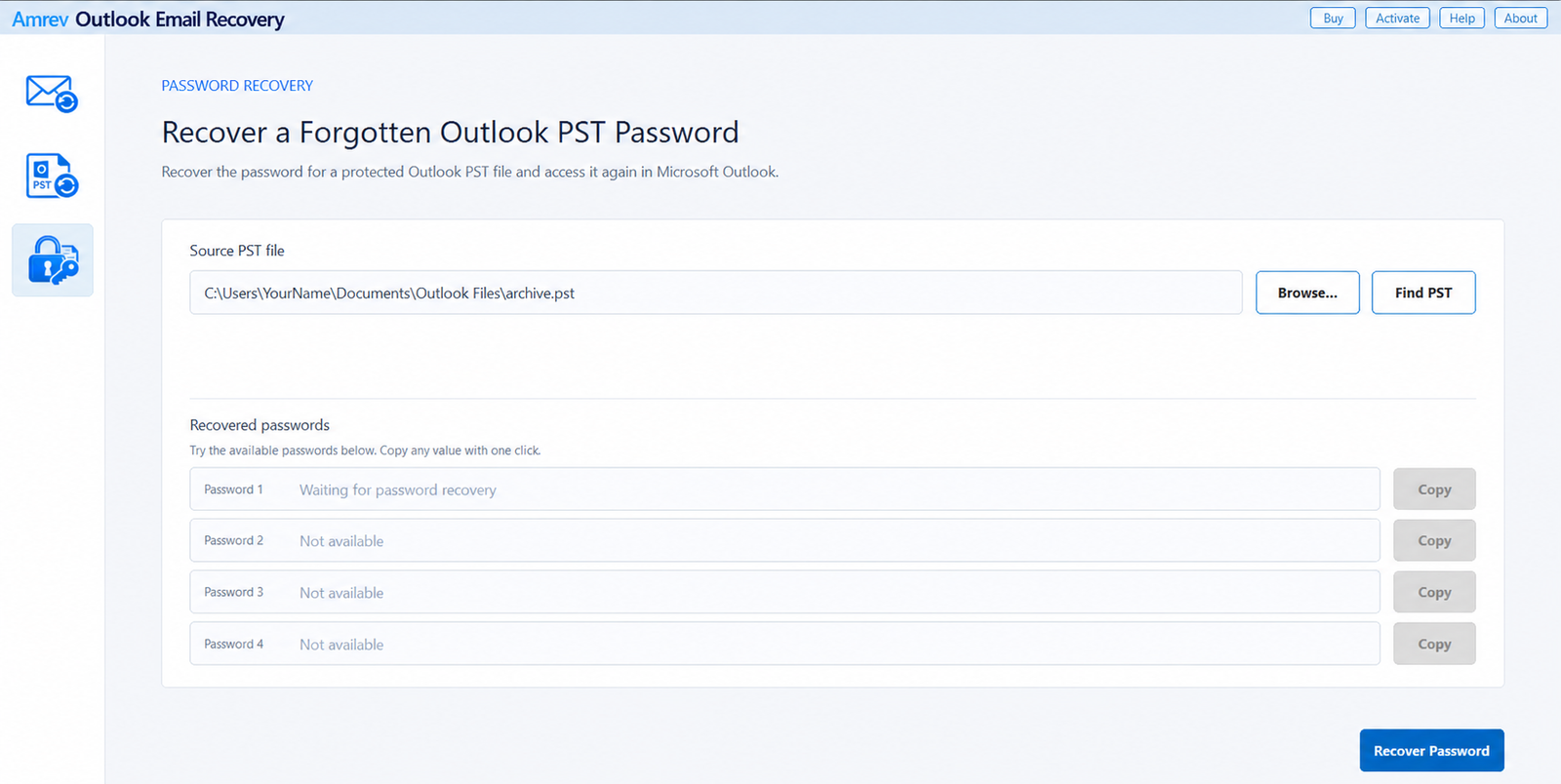
The Password Recovery screen accepts one source PST and displays any available recovered password values below it. The source file itself remains the file you later open in Outlook.
Select the password-protected PST
Open Amrev Outlook Email Recovery and choose Password Recovery from the left side. Select Browse and open the copied PST. If you do not know where the file is stored, use Find PST.
Choose Recover Password
Select Recover Password and wait while Amrev examines the PST. Do not move, rename, or open the source file in Outlook during this process.
Copy an available recovered password
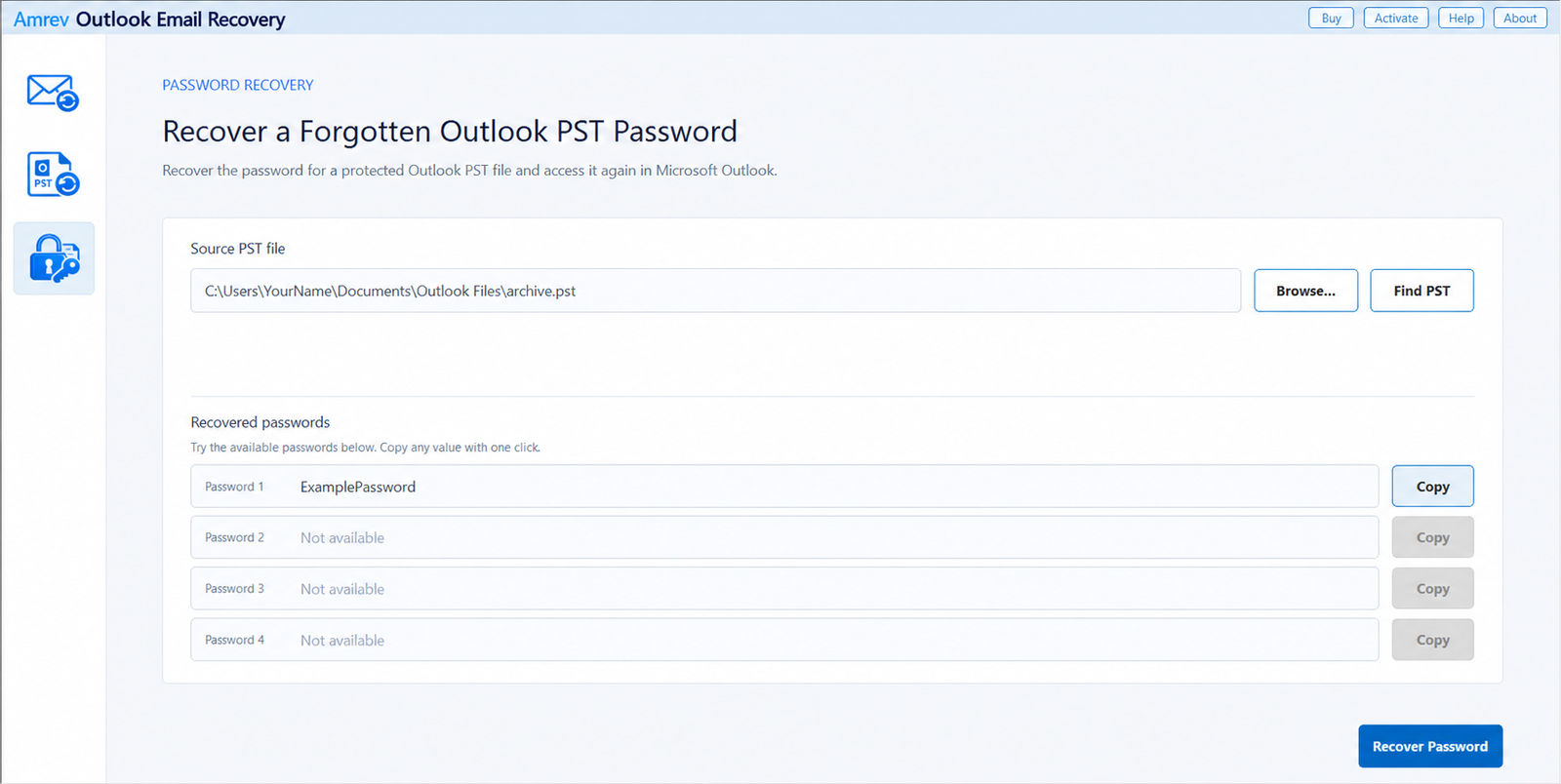
When recovery finishes, one or more available values may appear under Recovered passwords. Choose Copy beside the first available result. If Outlook does not accept it, return to Amrev and try the next available value.
Open the PST in Outlook
In classic Outlook, choose File > Open & Export > Open Outlook Data File and select the protected PST. Paste the recovered value into the password prompt. After the file opens, check several folders and messages before changing its password settings.
Find the password for your Outlook Data File
Select the protected PST, recover available password values, and try them in classic Outlook.
How to remove the PST password afterward
Remove password protection only after the PST opens successfully with the recovered password. Make a backup copy first, then keep the data file open in classic Outlook.
- Go to File > Account Settings > Account Settings.
- Open the Data Files tab.
- Select the protected Outlook Data File (PST) and choose Settings.
- Choose Change Password.
- Enter the recovered password in Old password.
- Leave New password and Verify password empty.
- Choose OK and close the remaining settings windows.
In some Outlook versions, you can also right-click the top-level name of the opened PST, choose Data File Properties > Advanced > Change Password, and complete the same fields.
Removing it stops Outlook from asking for that data-file password. It does not change Windows permissions, BitLocker protection, Microsoft account security, or organizational access policies.
What if Outlook does not accept the first result?
Make sure you selected the same PST that Outlook is trying to open. Similar filenames in different folders are common, particularly after a Windows reinstall or Outlook profile change.
Copy the password rather than retyping it, because case and punctuation matter. If Amrev displays more than one available value, try them in order. Close and reopen the password prompt between attempts if Outlook behaves unexpectedly.
If the PST produces a corruption error instead of a password error, keep the protected original untouched and work from a copy. Password recovery and mailbox recovery solve different problems.
Frequently asked questions
Is a PST password the same as my email password?+
No. A PST password protects a local Outlook Data File. It is separate from Microsoft account, Microsoft 365, Exchange, and Windows passwords.
Does password recovery create a new PST?+
No. Password Recovery displays available password values for the selected PST. You then use a recovered value to open that file in Outlook.
Why are several passwords displayed?+
The application may present more than one available value. Try the first result, then copy and test the next one if Outlook does not accept it.
Can I remove the PST password afterward?+
After opening the file with the current password, Outlook can change or remove the data-file password where permitted. Keep a backup before modifying the file.
Can this recover a Microsoft 365 account password?+
No. Use Microsoft’s account-recovery process for online account credentials. This feature is specifically for password-protected Outlook PST files.