Search Outlook for the original message before trying recovery. Check Deleted Items, Archive, other PST files, and folders used by rules. If the message or its attachment is no longer accessible, close Outlook and copy the PST. Scan that copy with Amrev Outlook Email Recovery, choose a separate destination, and inspect the recovered message and attachment. The full version automatically creates a new PST containing the recovered mailbox data.
Check whether the attachment is still in Outlook
Outlook stores an attachment with its email. Unless you previously saved a separate copy, finding the message is usually the quickest way to find the file.
- Search for the sender, subject, filename, or words from the message.
- Change the search scope to All Outlook Items or All Mailboxes.
- Check Deleted Items, Archive, Junk Email, and any folders used by rules.
- Open other PST files shown in the folder pane.
- Clear the current folder filter if messages appear to be missing.
If the email opens but the expected paperclip is absent, make sure the sender did not provide a cloud link instead of attaching the file. Outlook cannot recover a document that was only linked from OneDrive, SharePoint, or another online service.
Why an Outlook attachment may be unavailable
- The email containing it was deleted.
- The message was moved to another PST or folder.
- The PST was damaged during an Outlook crash.
- The message body opens, but its attachment record is corrupt.
- Outlook blocks the attachment type for security reasons.
- The original item was a cloud link, not an embedded file.
Recovery software is appropriate when the message or attachment record is missing from an existing PST. It does not download expired cloud links, bypass Outlook security policies, or recreate a file that was never stored in the PST.
Close Outlook before copying the data file. Continued use can change the PST and may overwrite older deleted records. Use the copy as the recovery source and choose a different destination for the new PST.
Locate and copy the Outlook PST
In classic Outlook, go to File > Account Settings > Account Settings > Data Files. Select the PST that contained the email and choose Open File Location. Close Outlook, then copy the PST to another local folder.
If Outlook will not open, check these common locations:
C:\Users\YourName\Documents\Outlook Files\
C:\Users\YourName\AppData\Local\Microsoft\Outlook\
Recover attachments from the PST file
The attachment remains associated with its email during recovery. Check both the message content and the attachment details before opening the recovered PST in Outlook.
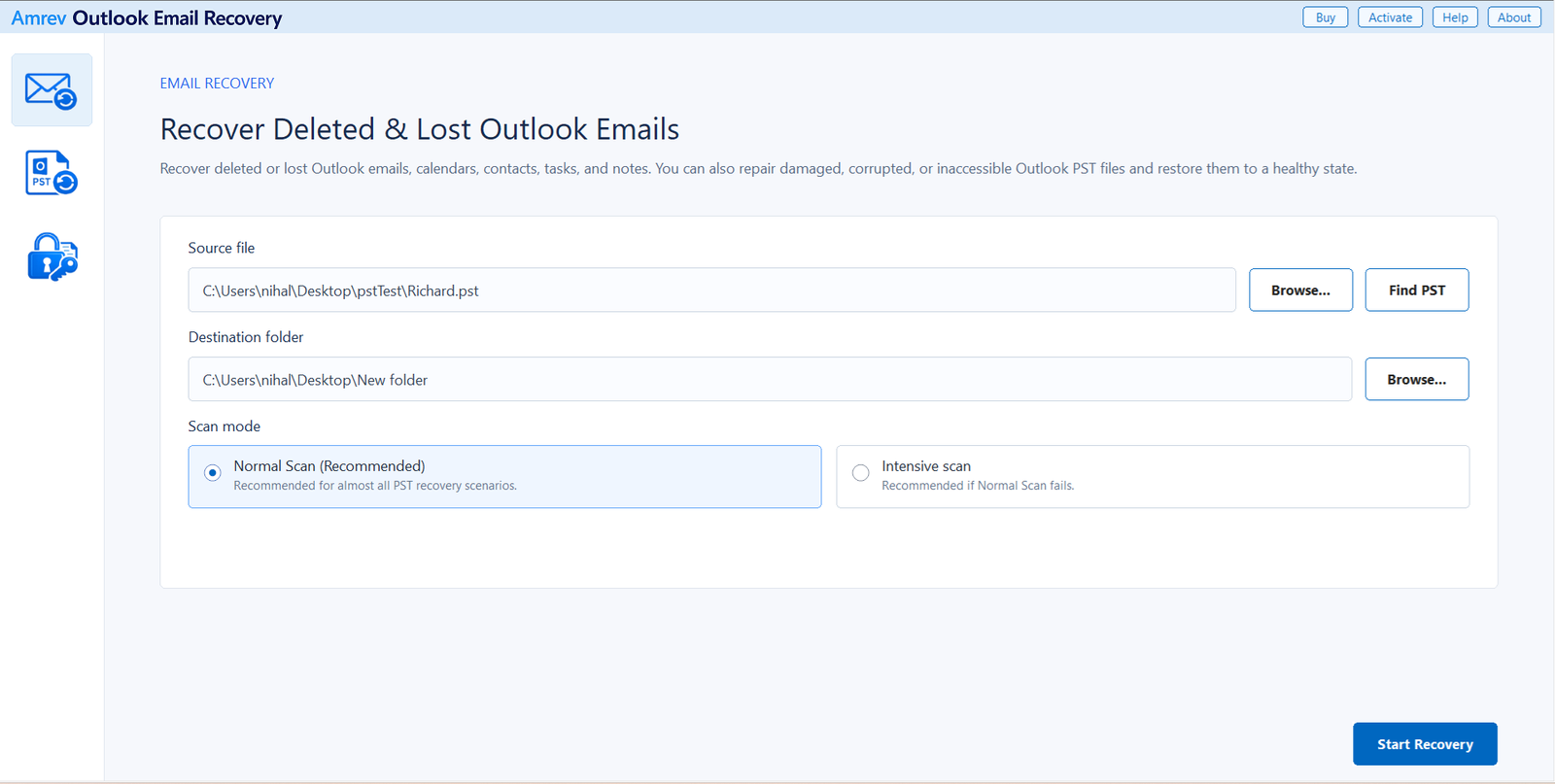
Select the source PST and destination
Open Amrev Outlook Email Recovery and choose Browse beside Source file. Select the copied PST, or use Find PST if its location is unknown. Choose a separate destination folder for the new PST. Begin with Normal Scan; try Intensive Scan if the message or attachment is not found or the PST is badly damaged.
Run the recovery scan
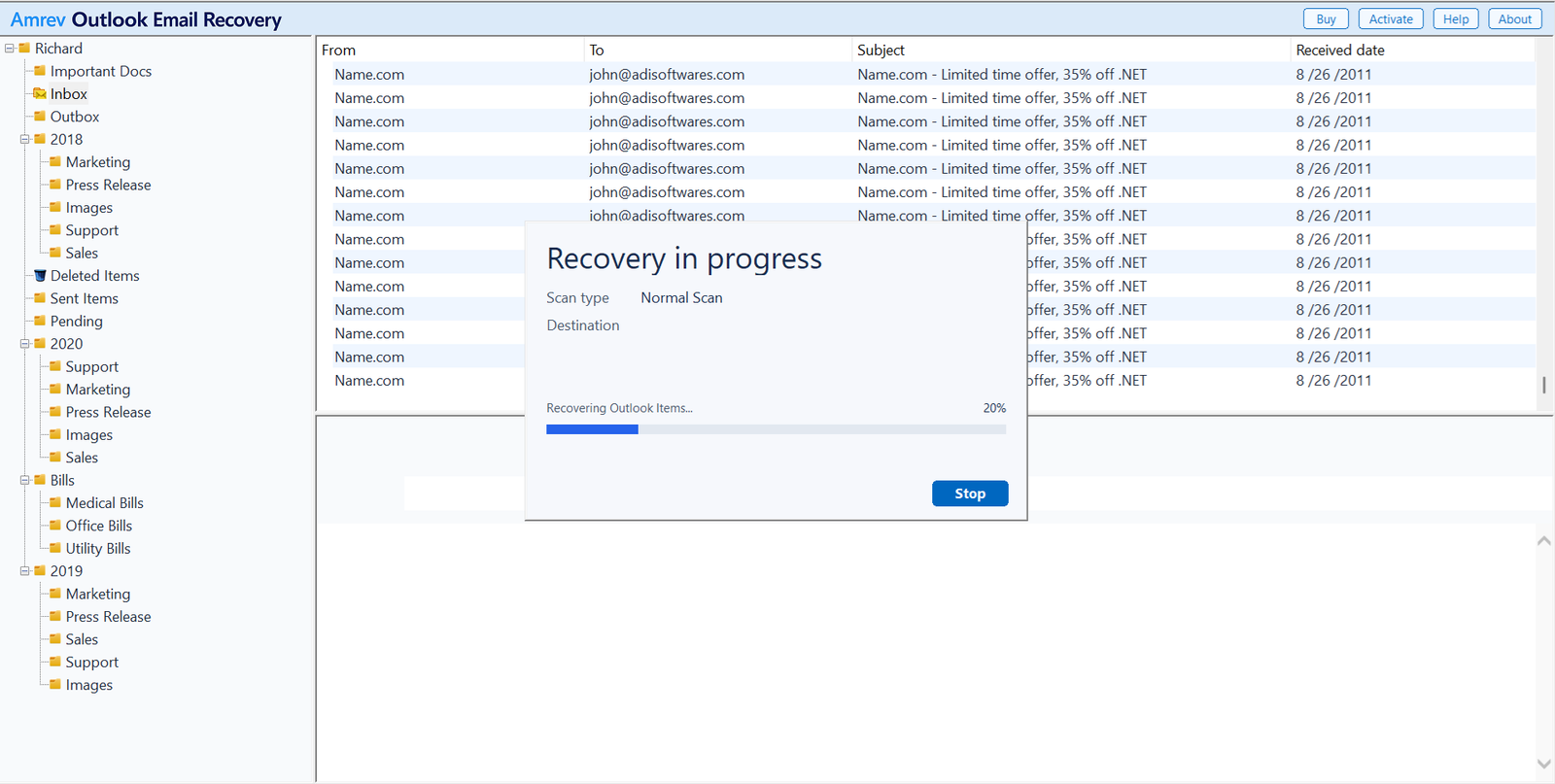
Choose Start Recovery and let the scan finish. Folders and messages appear while the PST is being read. Do not stop after finding the first version of an email; another copy elsewhere in the PST may contain the attachment you need.
Inspect the message and its attachment
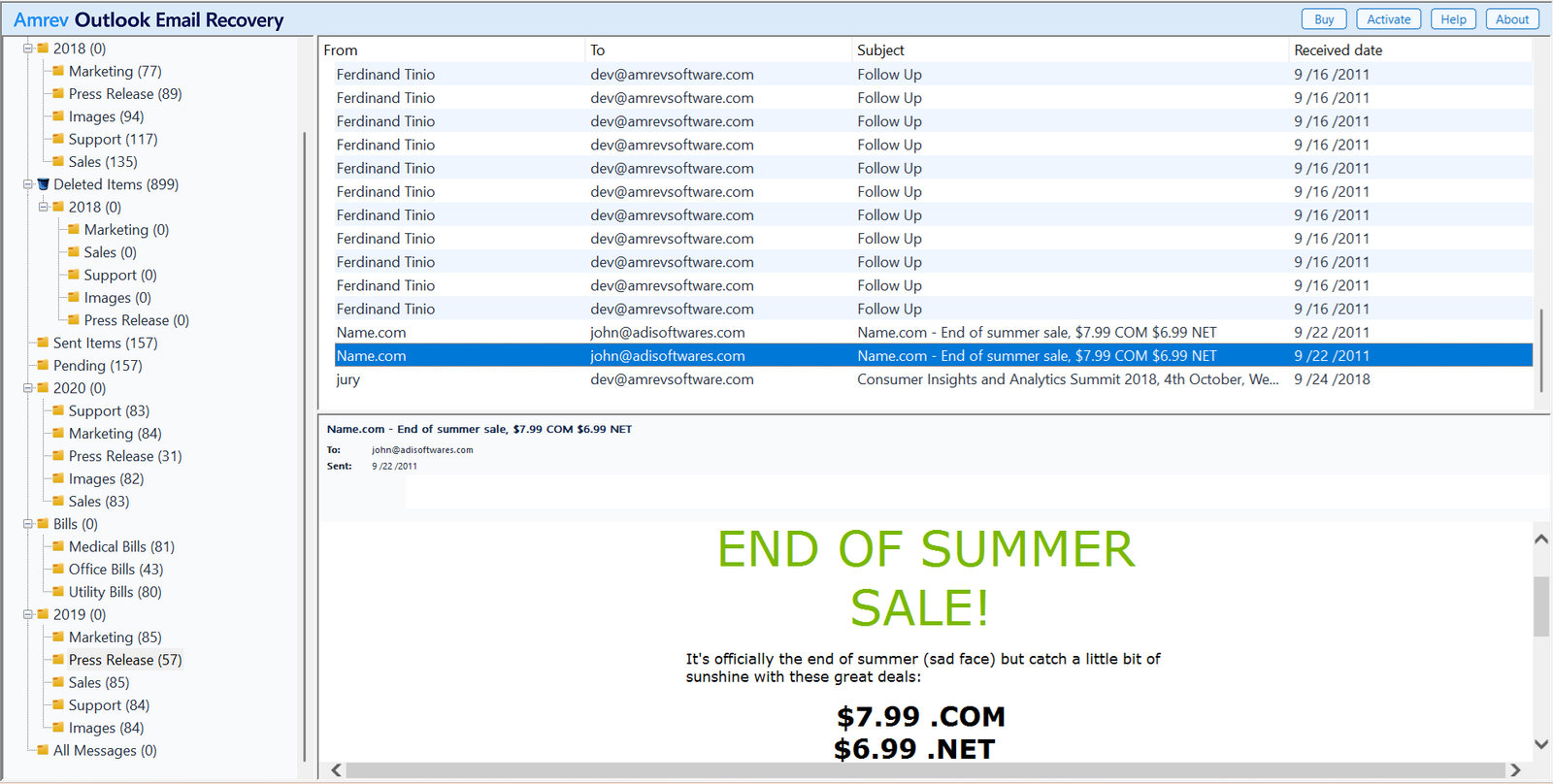
Find the email by folder, sender, subject, or date. Open it and confirm that the body belongs to the message you need. Check the attachment name and type as well. When several copies of a message exist, compare their dates and attachments rather than relying on the subject alone.
Open or import the recovered PST
At the end of recovery, the new PST is already in the destination selected in Step 1. There is no separate save step. The full version writes recovered emails and their attachments to this PST. The PST generated by the trial contains no actual recovered emails or attachments.
Look for the missing email and attachment
The trial can scan a copied PST and show the recovery result. Its generated PST contains no actual emails or attachments; the full version creates the PST with recovered mailbox data.
What if Outlook will not open the recovered attachment?
First save the attachment to a local folder and scan it with your security software. Outlook blocks some file extensions, and Windows may also mark files received from another computer as restricted. Those controls are separate from PST recovery.
If the attachment saves but its application reports that the file is damaged, the original attachment data may have been incomplete inside the PST. Try Intensive Scan and look for another copy of the same message. Recovery can reconstruct data that remains in the PST, but it cannot restore bytes that have already been overwritten or were never stored there.
Frequently asked questions
Can I recover an attachment without recovering its email?+
Attachments are stored as part of their Outlook messages. Recover the message into a PST first, open that PST in Outlook, and then save the attachment as a separate file.
Can deleted Outlook attachments be recovered?+
They may be recoverable when the deleted message and attachment records still exist in the PST. Recovery becomes less likely after the PST has been compacted or used extensively.
Can Amrev recover a OneDrive or SharePoint attachment link?+
It can recover mailbox data stored in the PST. It cannot restore a cloud file that was only linked from the email or that has been removed from the online service.
Should I use Normal Scan or Intensive Scan?+
Use Normal Scan first. Try Intensive Scan if the expected email or attachment is missing from the result or the PST is severely damaged.
Does the trial PST contain recovered attachments?+
No. The trial can scan the PST and show the recovery result, but its generated PST contains no actual emails or attachments. The full version writes the recovered mailbox data to the new PST.