Open Outlook’s Calendar view, select every calendar under My Calendars, and search the date or subject of the missing event. Check Deleted Items and reset the calendar view. If the calendar belonged to an existing Outlook Data File (PST) and its items are still missing, close Outlook, copy the data file, and scan the copy with Amrev Outlook Email Recovery. The full version automatically creates a new PST containing recoverable calendar items and other mailbox data.
Check Outlook before recovering the data file
Outlook can display several calendars at once, and it is easy to look at the wrong one after changing profiles or opening another data file. Start with these checks:
- Open Calendar and expand My Calendars.
- Select each calendar and check the date of the missing appointment.
- Use calendar search with the subject, organizer, location, or attendee.
- Check Deleted Items for the appointment or meeting.
- Choose View > Reset View if items disappeared after changing the view.
Switching to a list view can help when the exact date is unknown. Sort the entries by subject, start date, or modified date and look for the missing item there.
Confirm whether the calendar is stored in an Outlook Data File (PST)
This guide applies to calendar items stored in an Outlook Data File (PST). Calendars for Microsoft 365, Exchange, and Outlook.com accounts normally live on the mail server and synchronize with Outlook. If a server calendar is missing, first check the account in Outlook on the web and confirm that synchronization is working.
A PST recovery scan is appropriate when the calendar belonged to a POP account, an Outlook archive, an older PST, or another local Outlook Data File. It can also help when a damaged PST opens with an empty or incomplete Calendar folder.
Close Outlook, create a copy of the data file, and use the copy as the recovery source. Select a different destination for the new PST so the original remains untouched.
Find the Outlook Data File (PST) containing the calendar
In classic Outlook, go to File > Account Settings > Account Settings > Data Files. Select the data file associated with the affected calendar and choose Open File Location. Close Outlook completely before copying it.
If Outlook will not open, check these common PST locations:
C:\Users\YourName\Documents\Outlook Files\
C:\Users\YourName\AppData\Local\Microsoft\Outlook\
If several PST files are available, compare their names, sizes, and modified dates. Keep the originals and scan copies until you identify the one containing the expected Calendar folder.
Recover calendar items from the Outlook Data File (PST)
Calendar entries are recovered with the rest of the mailbox structure. After scanning, check individual appointments as well as recurring series, meeting details, reminders, and attachments.
Select the Outlook Data File (PST) and destination
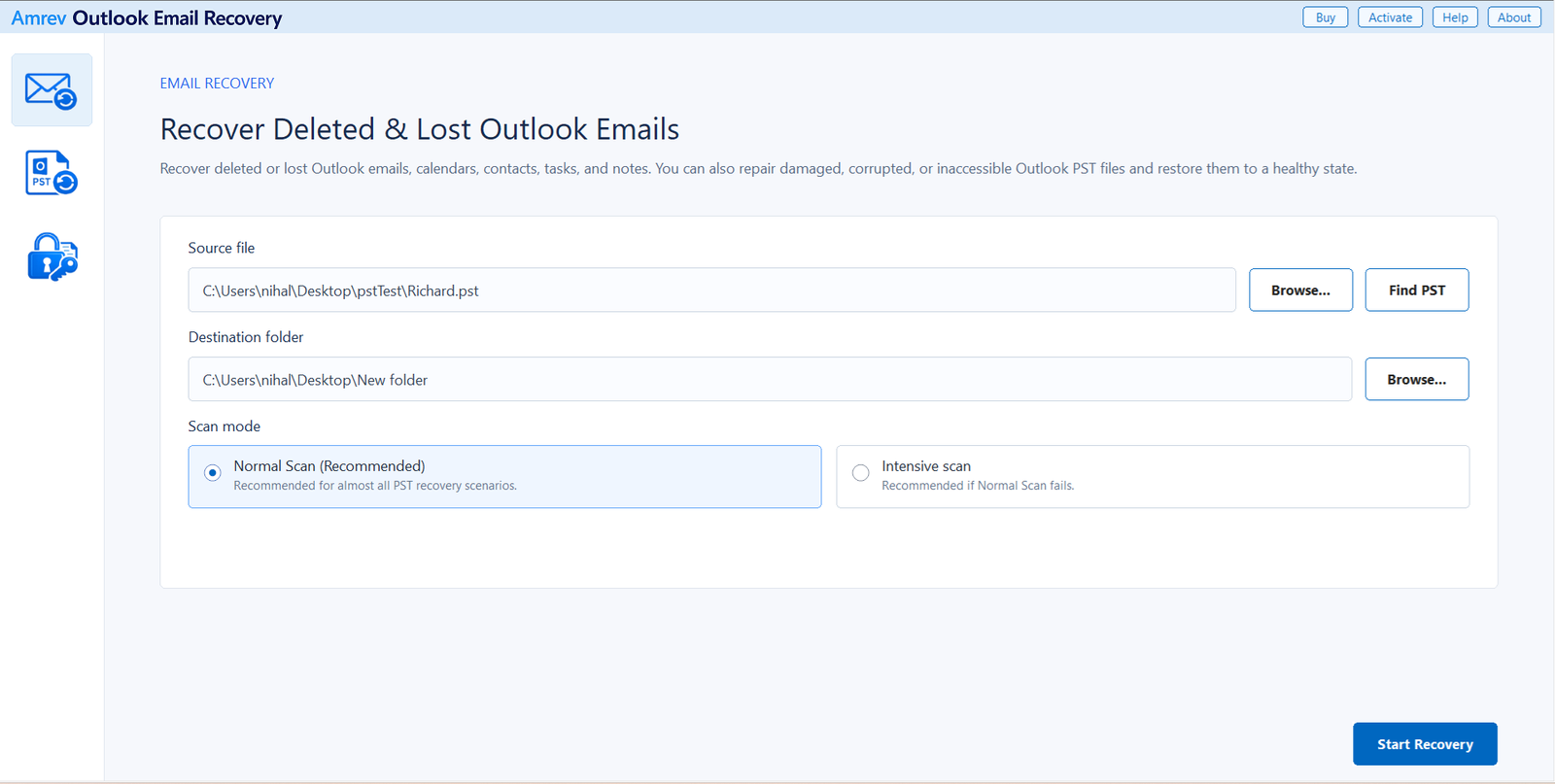
Open Amrev Outlook Email Recovery and choose Browse beside Source file. Select the copied PST, or use Find PST if its location is unknown. Choose a separate destination folder for the recovered PST. Start with Normal Scan; use Intensive Scan if the calendar entries are not found or the PST is severely damaged.
Run the complete scan
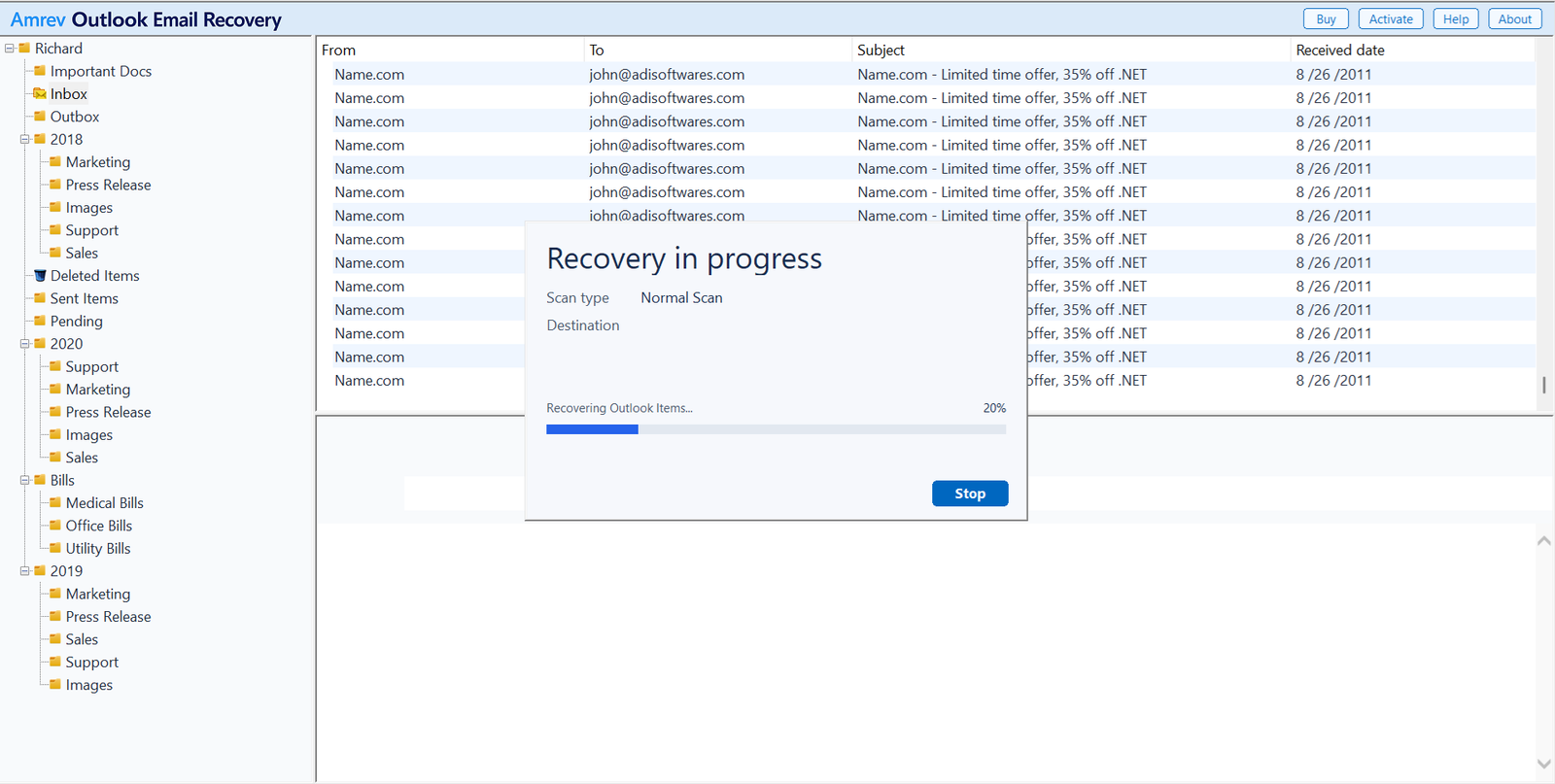
Choose Start Recovery. The program rebuilds the folder tree as it reads the PST. Let the scan reach the end even if mail folders appear first; calendar records may be located elsewhere in the file.
Inspect the recovered Calendar folder
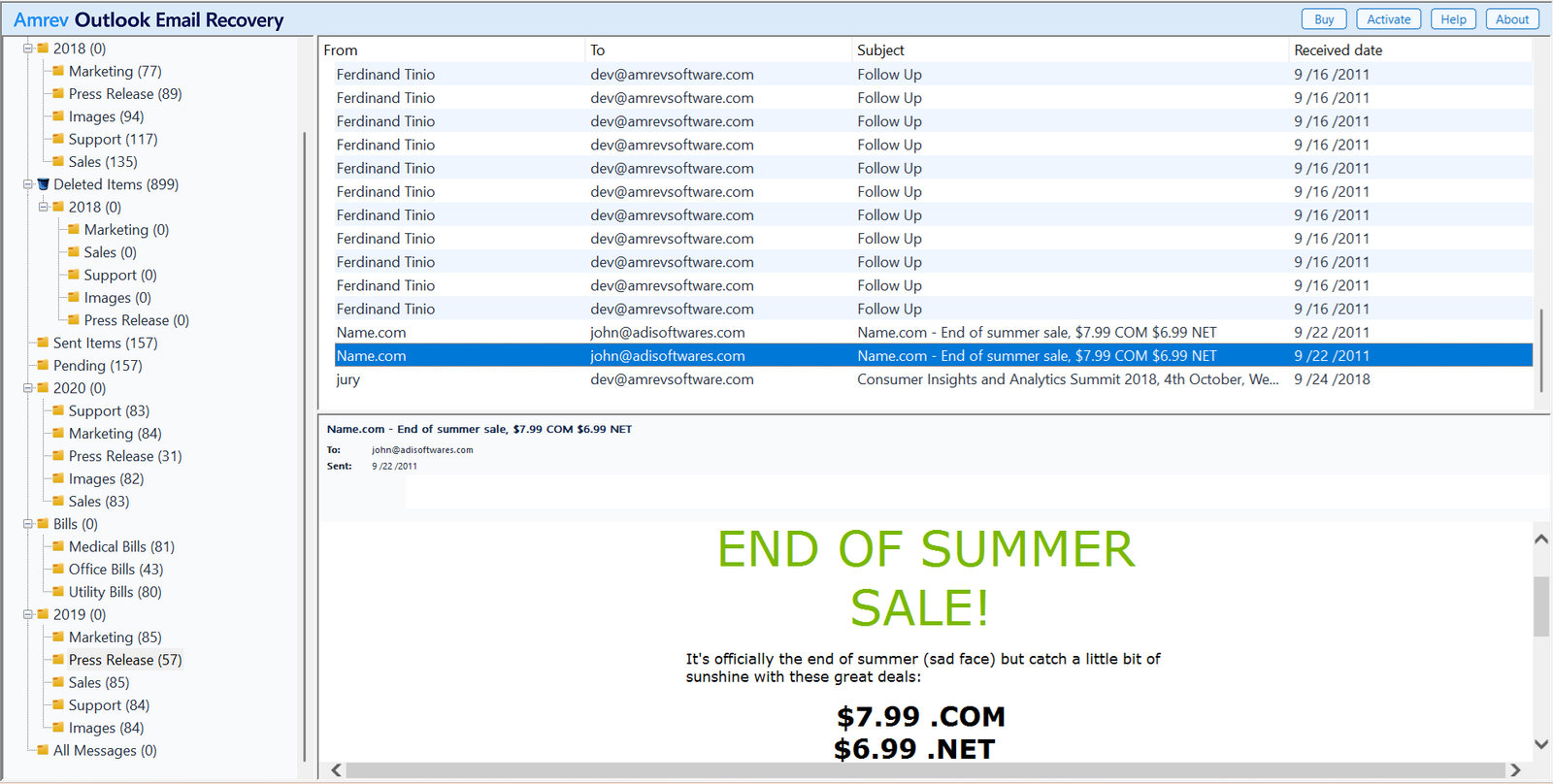
Open Calendar in the recovered folder tree and check entries from several dates. For important meetings, verify the subject, start and end time, time zone, location, organizer, attendees, notes, and attachments. For recurring events, check both the series and any exceptions that were edited separately.
Open or import the new PST
When recovery finishes, the new PST is already in the destination selected in Step 1. There is no separate save step. The full version writes recovered appointments, meetings, emails, and other mailbox items to this PST. The PST created by the trial contains no actual recovered Outlook items.
Scan a copy of your Outlook Data File (PST)
The trial can show the recovery result, but its generated PST contains no actual appointments, meetings, or emails. The full version creates the PST with recovered mailbox data.
Check recurring meetings before using the calendar
Recurring events deserve an extra check because Outlook stores a series together with exceptions for occurrences that were moved, cancelled, or edited. Open several dates in the recovered series and compare them with invitations or records you still have.
Open the recovered PST as a separate data file before importing anything. This lets you compare calendars without creating duplicate appointments in your main mailbox. Once you are satisfied with the result, import only the calendar data you need.
Frequently asked questions
Can deleted Outlook calendar entries be recovered?+
They may be recoverable if their records still exist in the PST. Continued use or compaction can overwrite deleted data, so close Outlook and work from a copy as soon as possible.
Can PST recovery restore recurring meetings?+
Recoverable recurring series and their stored exceptions can be rebuilt from the PST. Check several occurrences afterward because severe damage may affect individual exceptions or meeting details.
Will this recover my Microsoft 365 calendar?+
This process recovers calendar items stored in a PST. For a Microsoft 365 or Exchange calendar, first check Outlook on the web and resolve account synchronization problems.
Should I use Normal Scan or Intensive Scan?+
Start with Normal Scan. Use Intensive Scan if the Calendar folder is incomplete, expected appointments are missing, or the PST is severely damaged.
Does the trial PST contain recovered calendar items?+
No. The trial can scan the PST and show the recovery result, but its generated PST contains no actual appointments, meetings, or emails. The full version writes recovered Outlook data to the new PST.