Check the size of the Outlook Data File (PST) and make a copy before changing it. If Outlook still opens the file, remove or archive unneeded items, empty Deleted Items, and use Compact Now. If Outlook freezes, reports a data-file error, or cannot open the PST, scan the copy with Amrev Outlook Email Recovery. The full version automatically creates a new PST containing the recoverable mailbox data.
Check the size of the Outlook Data File (PST)
In classic Outlook, go to File > Account Settings > Account Settings > Data Files. Select the data file and choose Open File Location. In File Explorer, right-click the PST, choose Properties, and note its size.
Older ANSI-format PST files have a practical limit of about 2 GB. Modern Unicode files support much larger limits. Microsoft documents default Unicode limits of 20 GB for Outlook 2003 and 2007 and 50 GB for Outlook 2010 and later, although an administrator can change those limits. Increasing a limit is not always a good solution because very large files can still perform poorly.
Signs that file size is affecting Outlook
- Outlook takes a long time to open or close.
- Opening large folders makes Outlook stop responding.
- New messages cannot be moved or copied into the file.
- Search and folder switching have become unusually slow.
- Outlook reports that the data file has reached its limit.
- The PST no longer opens after a crash or forced shutdown.
A large file is not automatically corrupt. Try cleanup and compaction when Outlook can still open it. Use recovery when the PST is inaccessible or its mailbox contents are incomplete.
Close Outlook, copy the PST to a safe local folder, and keep the original unchanged. Confirm that the destination drive has enough free space for both the source and the new recovered PST.
If Outlook still opens the data file
Start by moving older mail into another Outlook Data File instead of deleting everything from the mailbox. Large attachments and folders with years of messages usually produce the biggest reduction.
- Search for large messages and save attachments you need outside Outlook.
- Delete unneeded items and empty Deleted Items.
- Move older folders into a separate archive PST.
- Open Account Settings > Data Files, select the file, choose Settings, and use Compact Now.
Deleting messages does not immediately make the PST smaller. Compaction reclaims unused space, and Microsoft notes that automatic compaction normally requires a meaningful amount of free space inside the file.
Recover data when the oversized PST will not open
Amrev does not split or compact PST files. Use it to recover readable mailbox data from the existing file and create a separate PST. After opening that PST, you can archive or reorganize its contents in Outlook.
Select the copied PST and destination
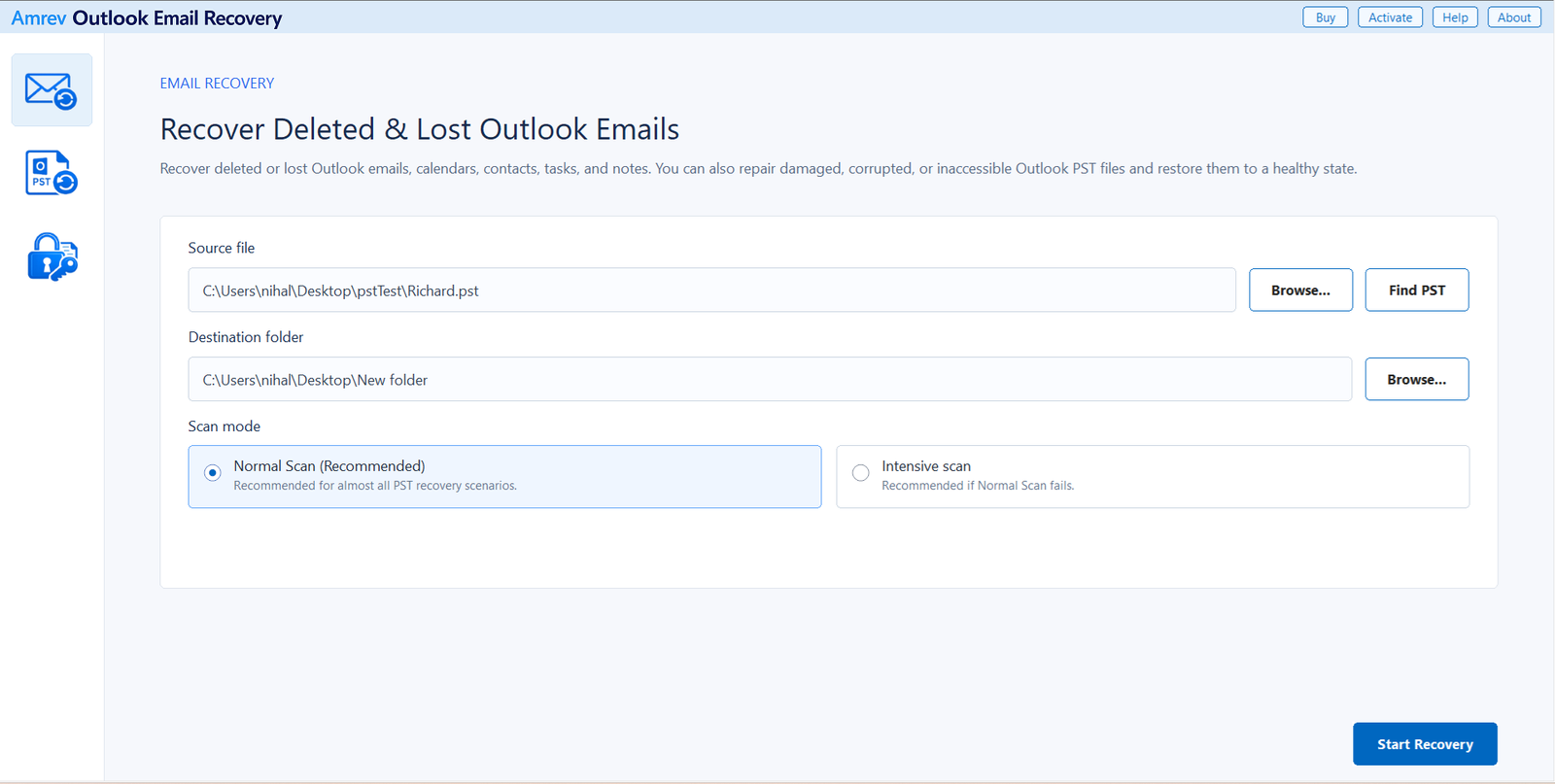
Open Amrev Outlook Email Recovery and choose Browse beside Source file. Select the copied PST. Choose a destination on a drive with enough free space for the recovered file. Start with Normal Scan; use Intensive Scan if the file is badly damaged or the first result is incomplete.
Allow extra time for the complete scan
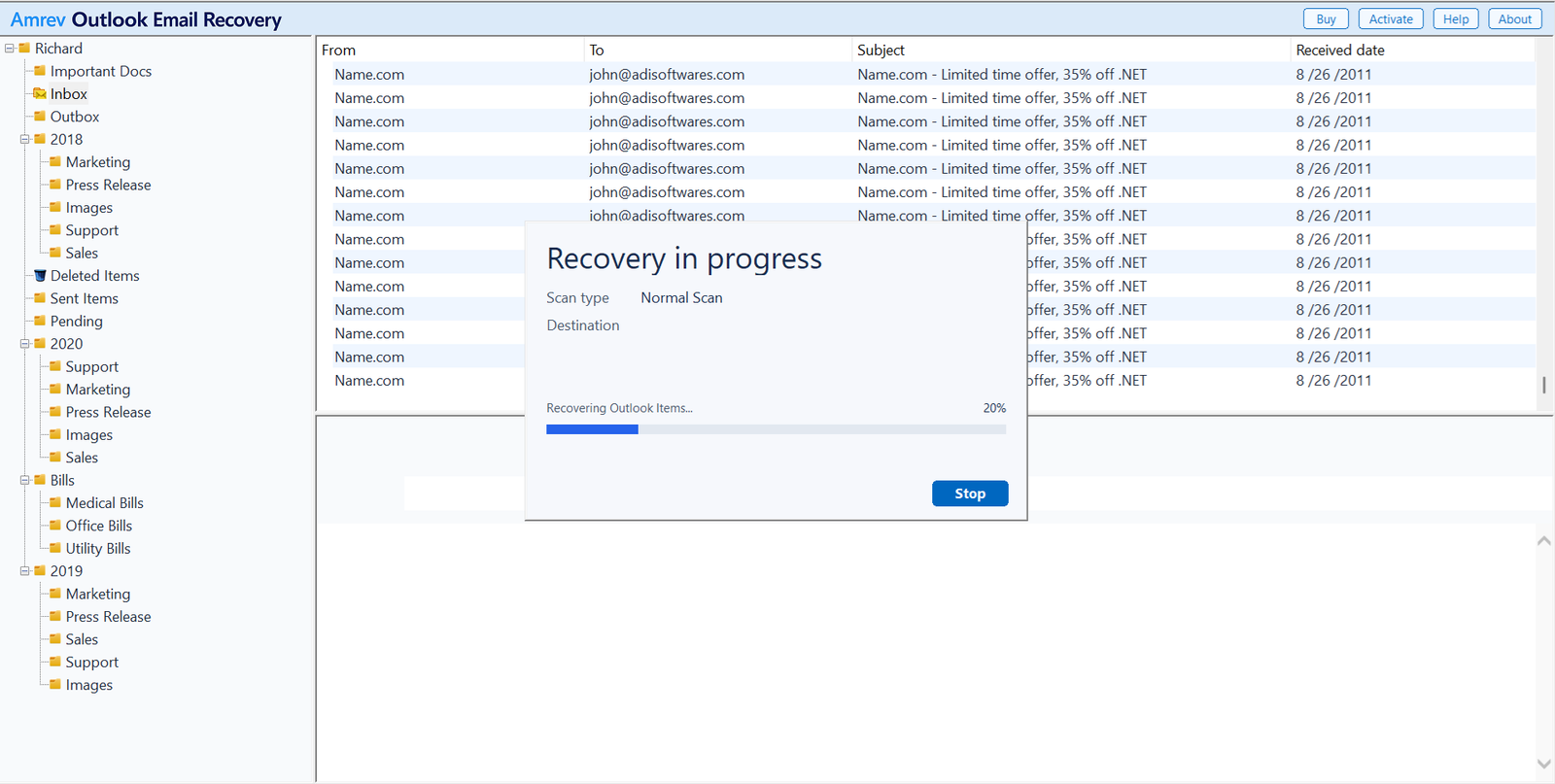
Choose Start Recovery. A large PST can take time to read, especially in Intensive Scan. Keep the computer awake and avoid interrupting the process. Folders may appear before the entire file has been examined.
Inspect folders and mailbox items
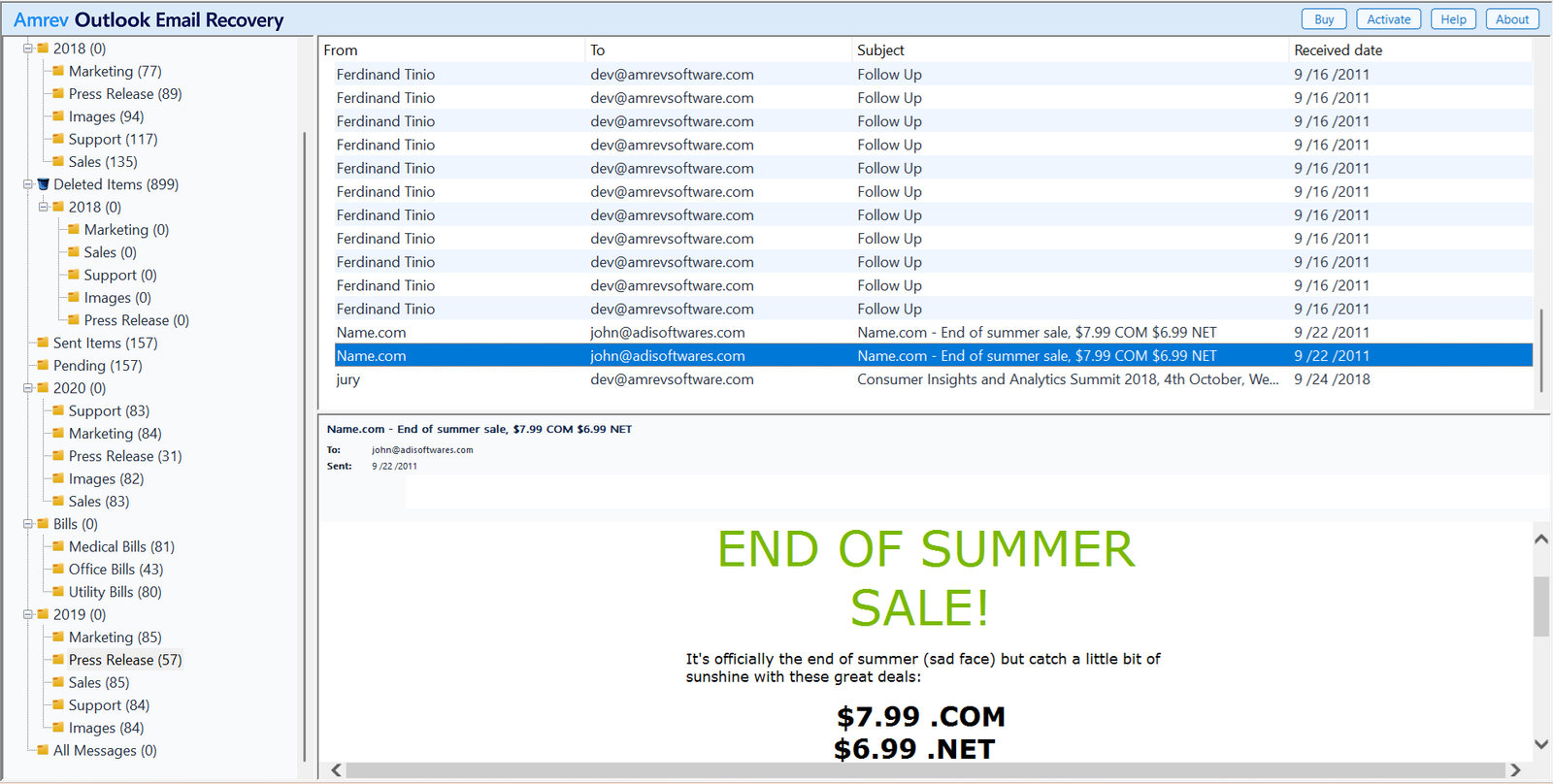
Expand folders from different parts of the mailbox and open messages from several dates. Check attachments, contacts, calendar entries, tasks, and notes. With a very large file, do not rely only on the top-level folder count; inspect the folders that mattered most.
Open the new PST and reorganize it
When recovery finishes, the new PST is already in the destination selected in Step 1. There is no separate save step. The full version writes recovered mailbox data to the file. The PST created by the trial contains no actual recovered Outlook items.
Scan a copy of your Outlook Data File (PST)
The trial can show the recovery result, but its generated PST contains no actual Outlook items. The full version creates the PST with recovered mailbox data.
Keep the recovered data file manageable
Do not reconnect the recovered PST and continue filling it indefinitely. Keep current mail in one data file and move completed projects or older years into separate archives. Save unusually large attachments outside Outlook when appropriate, then remove only the copies you no longer need.
Maintain backups of closed PST files and periodically check their sizes. Smaller, purpose-based archives are easier to copy, back up, and troubleshoot than one data file containing every message from many years.
Frequently asked questions
What is the maximum size of an Outlook PST?+
Older ANSI PST files are limited to about 2 GB. Microsoft documents default Unicode limits of 20 GB for Outlook 2003 and 2007 and 50 GB for Outlook 2010 and later. Administrators can change Unicode limits, but larger files may perform poorly.
Does deleting email immediately reduce the PST size?+
No. Deleted space remains inside the file until Outlook compacts it. Empty Deleted Items and use Compact Now when Outlook can still open the data file.
Can Amrev split or compact a large PST?+
No. Amrev recovers mailbox data into a new PST. Use Outlook afterward to organize recovered folders across smaller data files.
Should I use Normal Scan or Intensive Scan?+
Start with Normal Scan. Use Intensive Scan if the result is incomplete or the oversized PST is severely damaged.
Does the trial PST contain recovered mailbox data?+
No. The trial can scan the data file and show the recovery result, but its generated PST contains no actual Outlook items. The full version writes recovered mailbox data to the new PST.