Stop using the formatted drive immediately. Do not reinstall Windows, install Amrev, or save new files on that drive. Run Amrev from another physical drive, open PST Recovery, select the formatted source drive, and choose Scan Drive. Select likely Outlook Data Files from the results and save them to a different physical drive. Then open each recovered PST in Outlook or scan a copy in Email Recovery mode if Outlook cannot read it.
Stop using the formatted drive
Every write to the source drive can replace data that belonged to the missing PST. Even ordinary Windows activity creates temporary files, browser caches, updates, and logs.
- Do not install recovery software on the source drive.
- Do not reinstall Windows onto that drive.
- Do not create a new partition or format it again.
- Do not copy recovered files back to the source.
- Avoid disk cleanup, optimization, and defragmentation.
- Use another physical drive for recovered PST files.
If Windows was installed on the formatted drive after the PST was lost, parts of the old file may already have been overwritten. Stop using the installation as soon as practical and scan from a separate Windows system where possible.
Quick format, full format, and overwriting
| What happened | Effect on PST recovery |
|---|---|
| Quick format, little or no reuse | The old file records are removed, but some PST data may still remain available to a drive scan. |
| Quick format followed by new files | New data may overwrite parts of the PST, so a recovered file can be incomplete or corrupt. |
| Full format | Recovery chances are much lower because the format process may overwrite or verify the storage area. |
| Windows reinstalled on the same partition | System files and updates may overwrite substantial portions of the old PST. |
| SSD with TRIM | Deleted storage may be cleared internally, sometimes leaving little or no recoverable data. |
No software can guarantee recovery from a formatted drive. The outcome depends on the format method, storage type, later writes, encryption, and the physical condition of the device.
A different partition on the same disk is not enough. Saving there can overwrite data elsewhere on the physical source device. Connect another internal drive, external drive, or sufficiently large removable device.
Prepare before scanning
- Identify the physical drive that held the PST before formatting.
- Connect a separate destination drive with enough free space.
- Install and run Amrev from a drive other than the source.
- Note the source drive’s current letter, capacity, and label.
- Close applications that may write to the source drive.
Drive letters can change after formatting or when a device is connected to another computer. Use capacity and device identity—not only the old drive letter—to choose the correct source.
Scan the formatted drive for Outlook Data Files
The PST Recovery mode scans an internal or removable drive and lists Outlook PST files it can identify. Save the selected results away from the source before testing them.
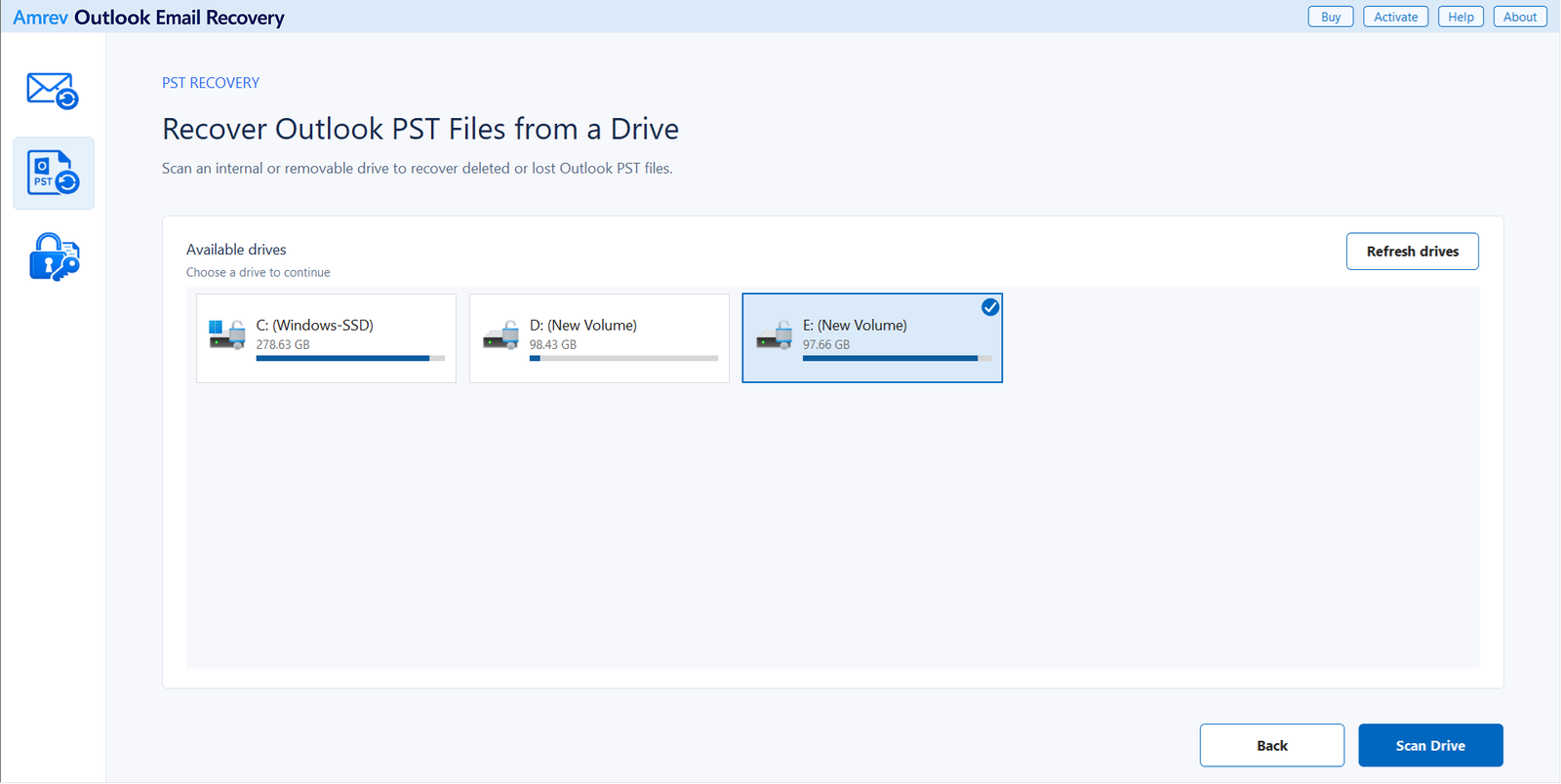
Select the formatted source drive
Open Amrev Outlook Email Recovery and select PST Recovery on the left. Choose the drive that contained the PST before formatting, then select Scan Drive. If a connected drive is missing, choose Refresh drives.
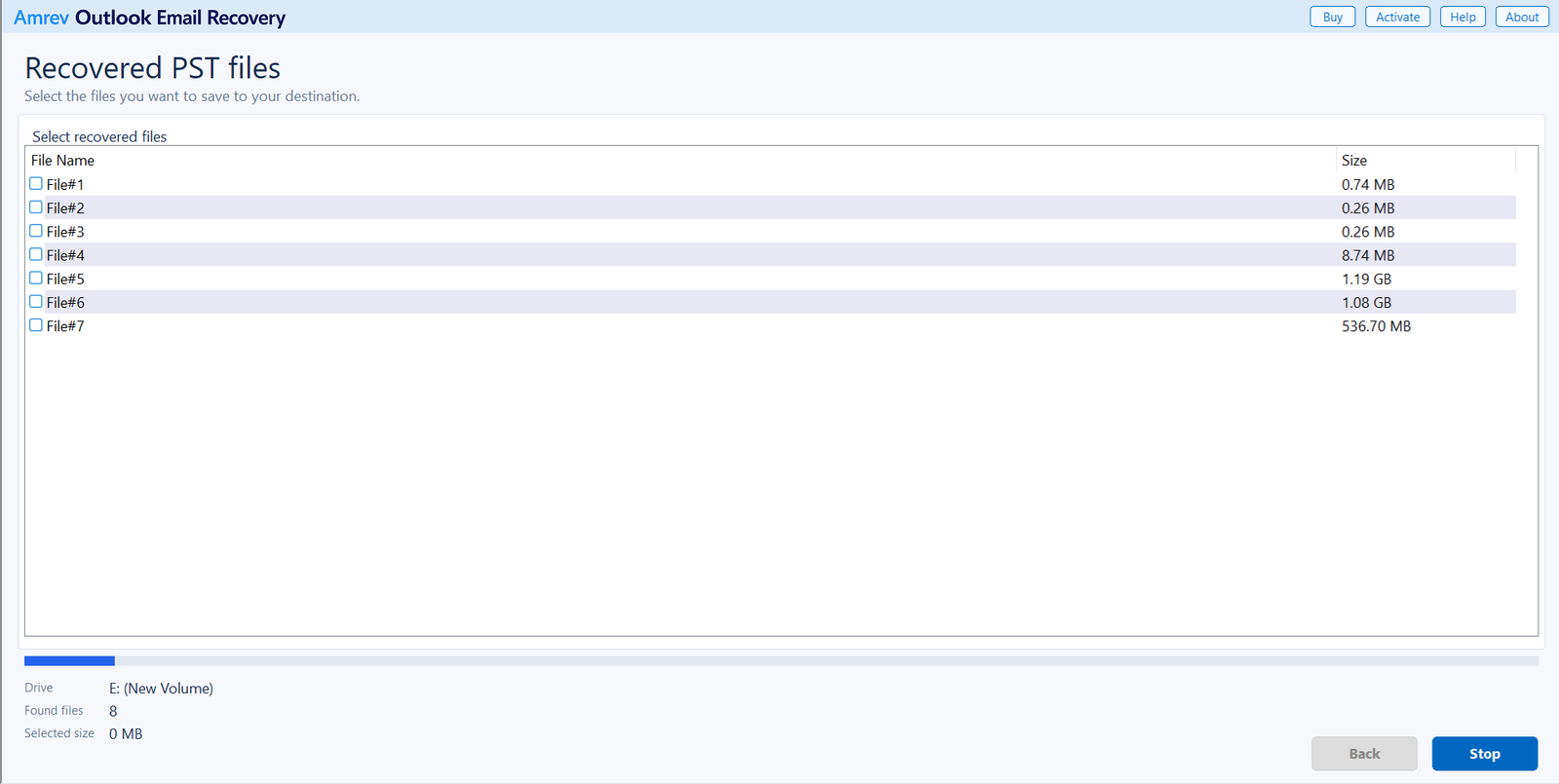
Let the drive scan finish
PST files appear in the list as they are found. Leave the scan running to completion whenever possible. A later result may be more complete than a similar file found early in the scan.
Select every likely PST result
Use the checkboxes to select plausible Outlook Data Files. Formatting can remove the original names and paths, so size may be the most useful clue. When destination space allows, recover all likely candidates rather than choosing only the largest file.
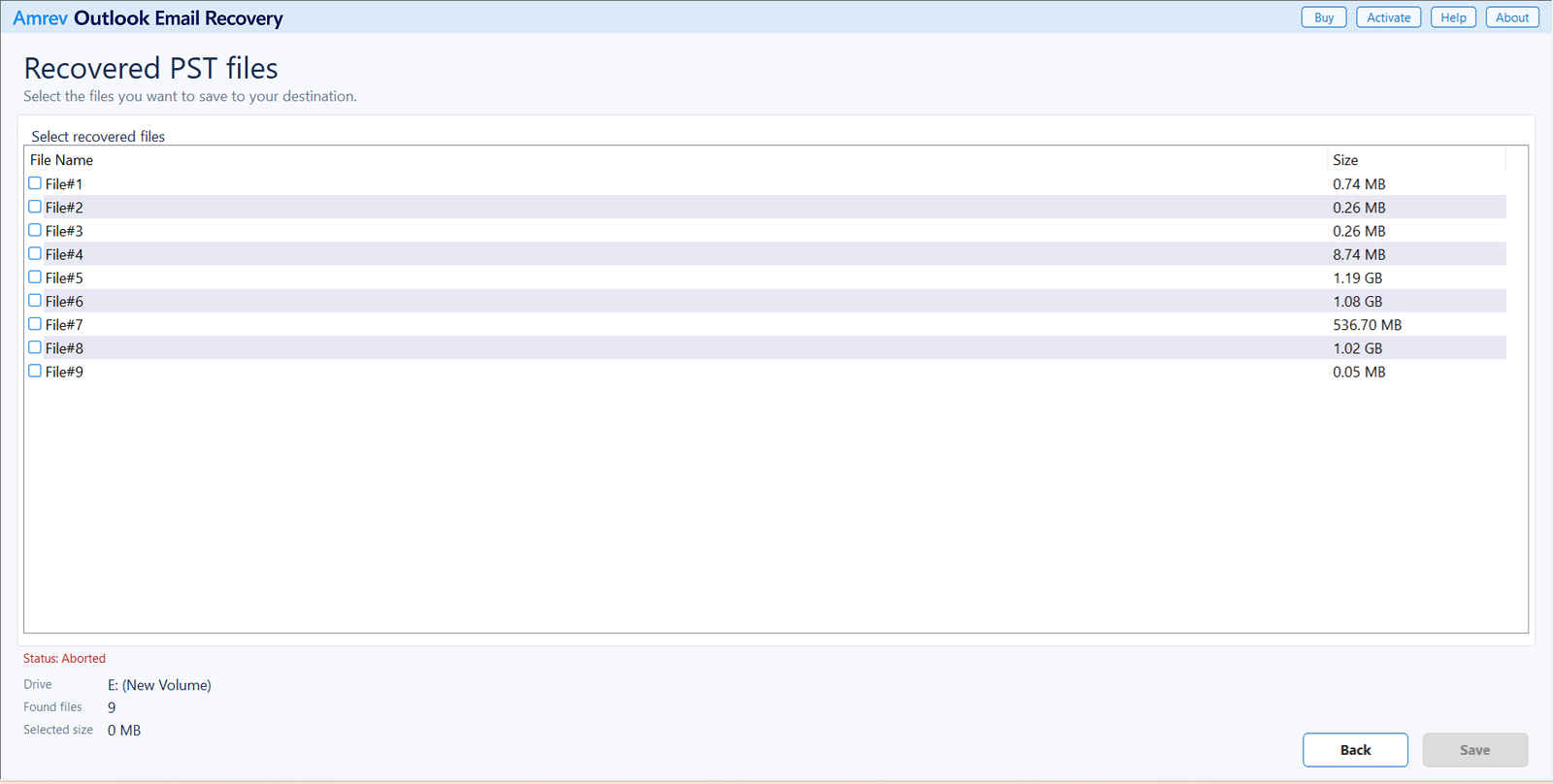
Save to another drive and inspect the files
Choose Save and select a folder on a different physical drive. Keep an untouched copy of every recovered PST. Use duplicate copies for opening, repair, or mailbox recovery.
Look for lost Outlook Data Files
Scan the source device, select likely PST results, and save them to another physical drive.
Check recovered PST files carefully
A recovered PST may open but still be missing recent folders or messages because part of the source was overwritten. Check more than the Inbox. Compare custom folders, Sent Items, Deleted Items, contacts, calendar entries, tasks, notes, and attachments.
If several versions are recovered, do not discard the smaller ones immediately. One file may be an old archive while another contains the active mailbox. Keep all recovered originals until the important data has been verified and backed up.
Frequently asked questions
Can a PST be recovered after a quick format?+
It may be possible when the drive has not been reused and the PST data remains on the storage device. Stop using the drive and scan it as soon as possible.
Can a PST be recovered after a full format?+
Recovery is far less likely because a full format may overwrite or verify the storage area. Results depend on the format method, device, and later writes.
Can I save results to another partition on the same disk?+
Use a different physical drive. Writing to another partition on the same device can still overwrite recoverable source data.
Why does a recovered PST have a generic name?+
The format may have removed its original filename and folder records. Compare size and mailbox contents to identify each recovered file.
What if Outlook cannot open a recovered PST?+
Keep the recovered original unchanged. Make a copy and use Amrev Email Recovery to scan its mailbox data and create a new PST.