First expand the complete Outlook folder tree and confirm that the correct Outlook Data File (PST) is open. If parent folders, nested subfolders, or their messages are genuinely missing, close Outlook and copy the data file. Scan the copy with Amrev Outlook Email Recovery, choose a separate destination, and inspect the recovered hierarchy. The full version automatically creates a new PST containing recoverable folders and mailbox items.
Make sure the folders are not simply collapsed
A small arrow beside a folder means that it contains subfolders. Expand each level before assuming the hierarchy is lost. Also check the full folder pane rather than Favorites, which only shows shortcuts to selected folders.
- Choose View > Folder Pane > Normal.
- Expand the mailbox or Outlook Data File at the top of the tree.
- Expand each parent folder that may contain the missing subfolders.
- Check Deleted Items for a folder moved there accidentally.
- Search for a message from the missing folder and inspect its current location.
If all folders return after expanding the tree, no recovery is needed. Outlook normally remembers expanded and collapsed states separately for different profiles.
Confirm that Outlook opened the correct data file
Folder structures belong to a particular mailbox or PST. If Outlook starts with a new profile, an older archive and its folder tree may no longer be attached.
Go to File > Account Settings > Account Settings > Data Files and check the listed files. To open an existing PST manually, choose File > Open & Export > Open Outlook Data File. Opening the correct file may restore the entire hierarchy without a recovery scan.
Close Outlook and copy the file before repair or recovery. Scan the copy and create the recovered PST in another folder. Do not overwrite the only version of the original hierarchy.
Signs that the folder structure is damaged
- Parent folders open, but their subfolders are gone.
- Messages appear under the wrong folder after a crash.
- Several custom folders disappeared together.
- Outlook cannot expand part of the folder tree.
- The PST opens with only default folders visible.
- ScanPST repaired the file, but the hierarchy is incomplete.
The folder name, its parent relationship, and its messages are separate records inside the data file. Mild damage may leave the full relationship intact. With severe damage, messages can remain recoverable even when an original folder name or parent link is no longer available.
Recover the folder hierarchy from the Outlook Data File (PST)
Use a copied PST as the source. After scanning, compare the recovered tree with the folders you remember before opening or importing the new file.
Select the data file and destination
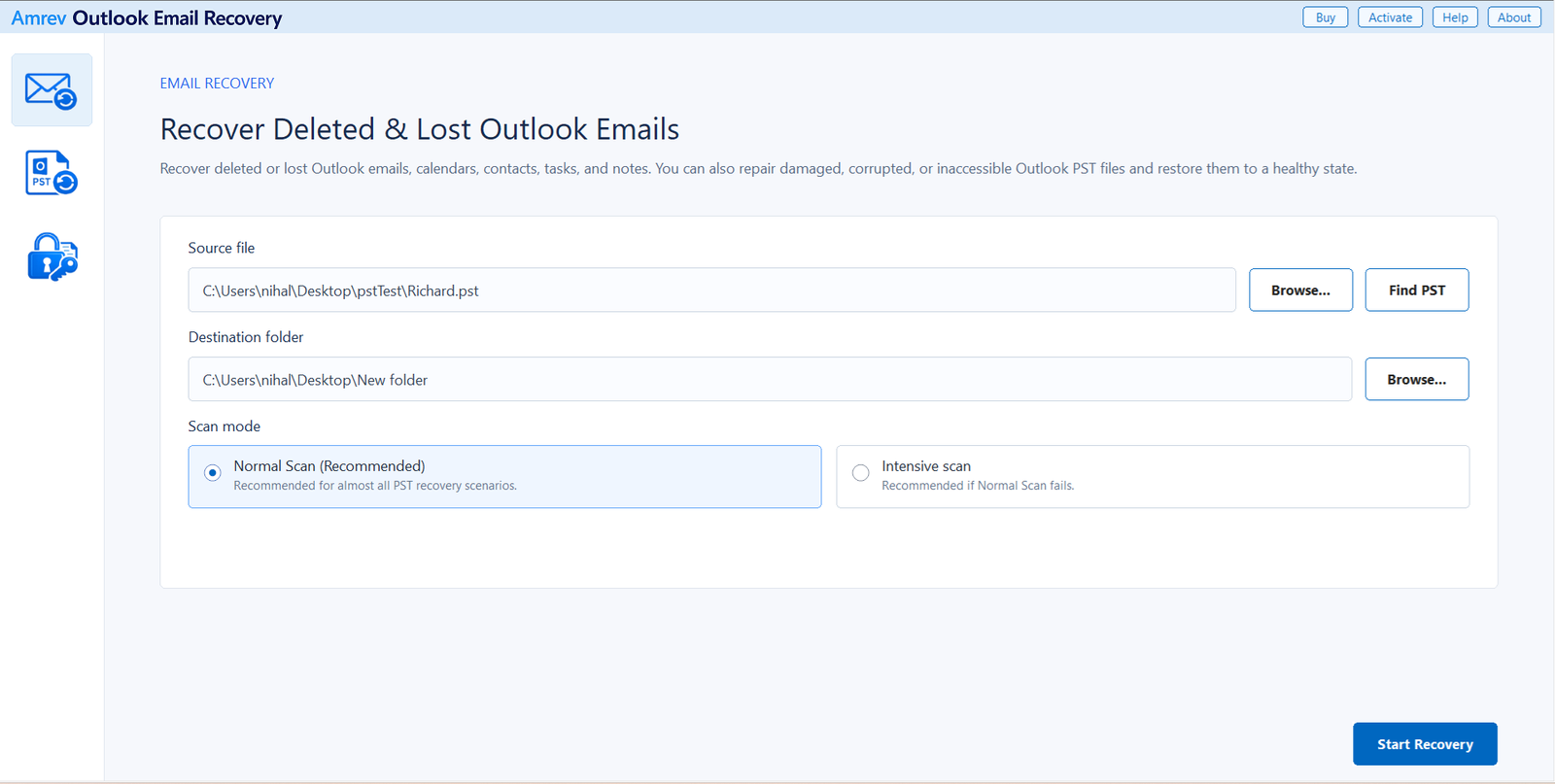
Open Amrev Outlook Email Recovery and choose Browse beside Source file. Select the copied PST, or use Find PST if its location is unknown. Choose a separate destination for the recovered PST. Begin with Normal Scan; use Intensive Scan if folders are missing from the result or the file is severely damaged.
Let the complete folder tree build
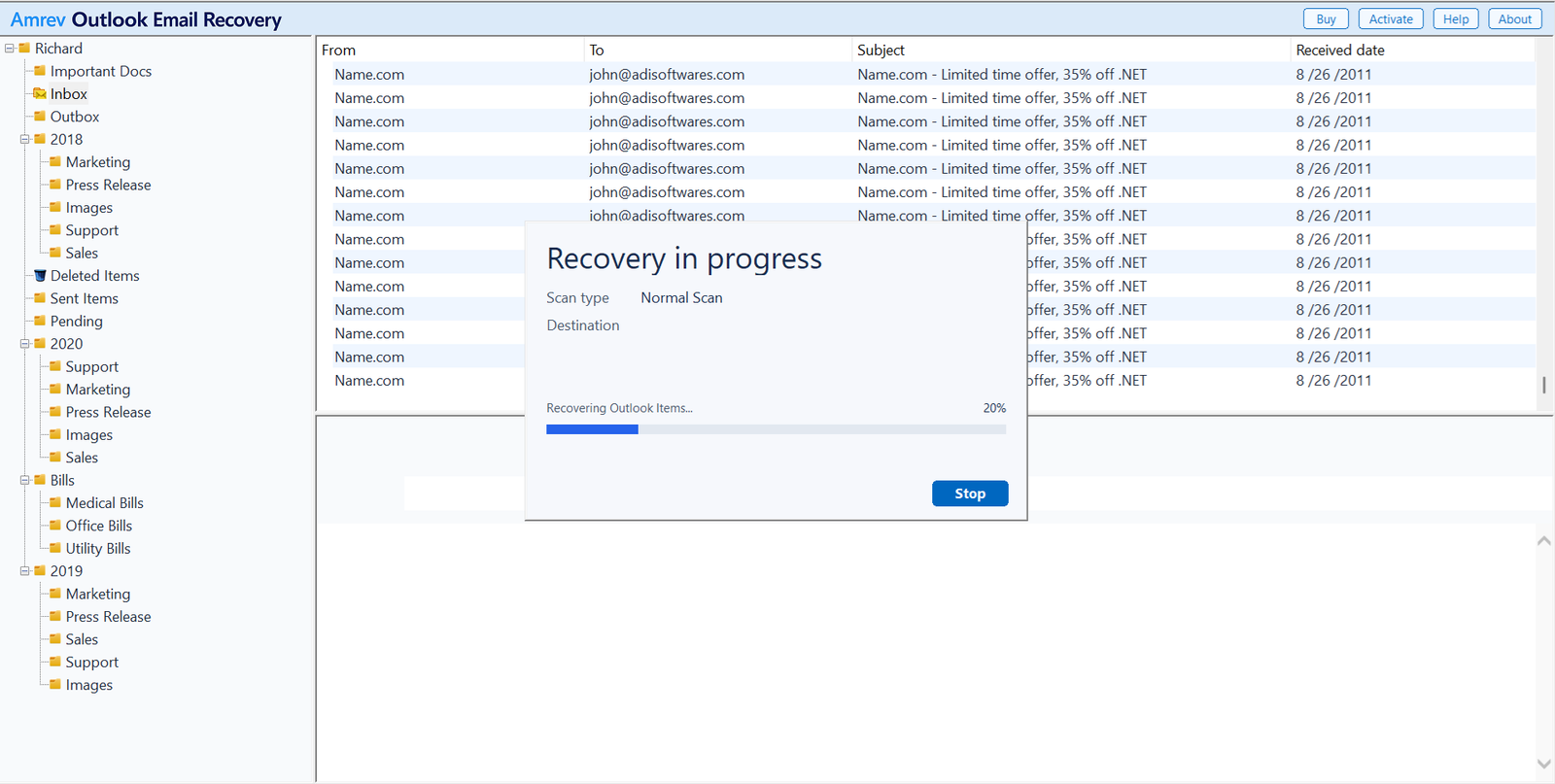
Choose Start Recovery. Folders begin to appear while the application reads the PST. Do not stop when Inbox and Sent Items become visible. Custom folders and nested subfolders may be found later in the scan.
Inspect parent folders and subfolders
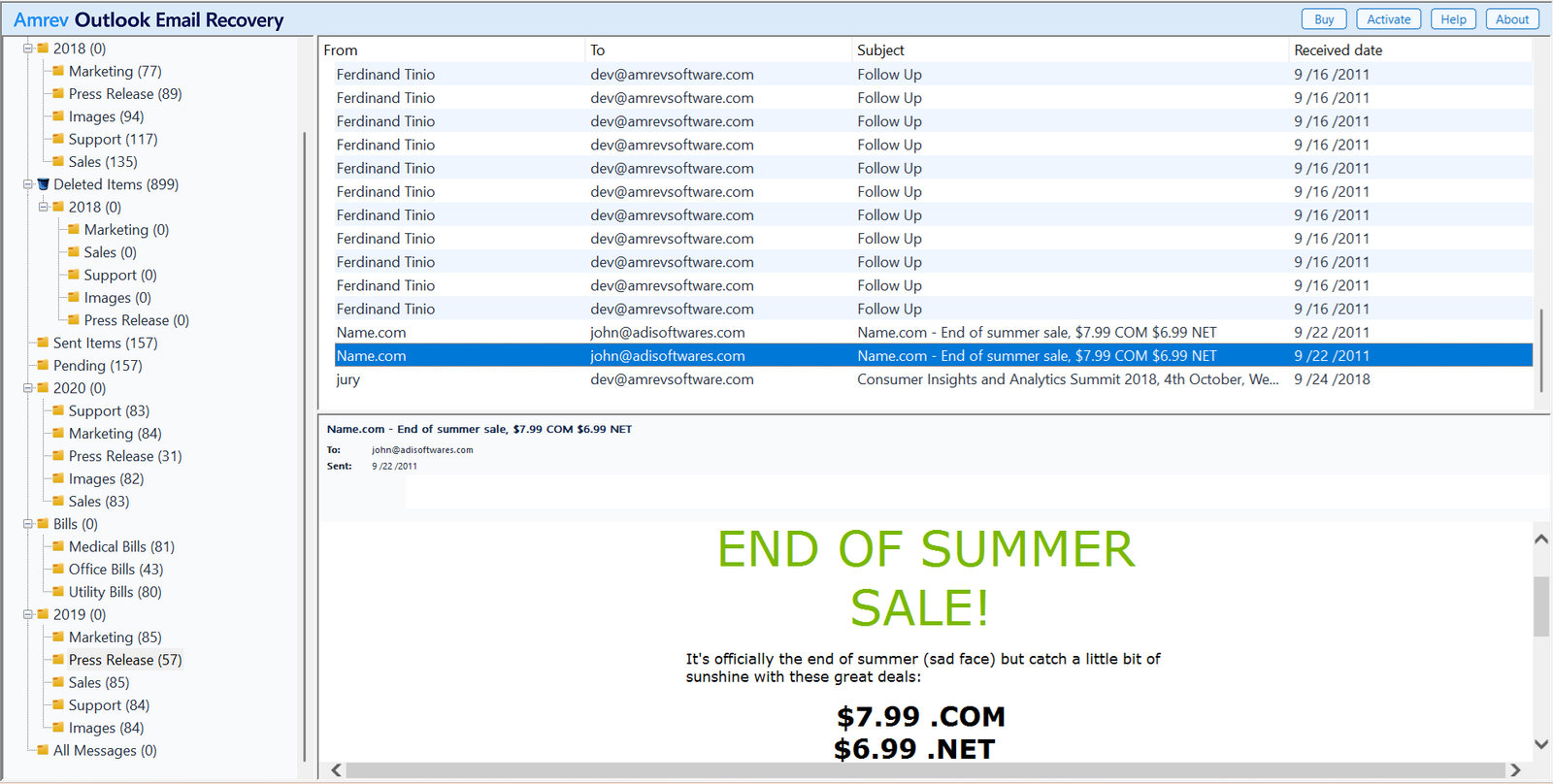
Expand the recovered tree one branch at a time. Check important parent folders, their nested subfolders, and messages stored at each level. Compare dates, senders, subjects, and item counts. If an original folder name could not be reconstructed, inspect recovered folders for the messages that belonged there.
Open the new PST before importing
When recovery finishes, the new PST is already in the destination selected in Step 1. There is no separate save command. The full version writes recovered folders and mailbox items to this file. The PST created by the trial contains no actual recovered Outlook items.
Scan a copy of your Outlook Data File (PST)
The trial can show the recovery result, but its generated PST contains no actual folders or emails. The full version creates the PST with recovered mailbox data.
Avoid flattening or duplicating folders during import
Open the recovered PST directly before importing it. This preserves a clean reference copy and lets you confirm where every folder belongs. If you import immediately into a busy mailbox, duplicate names and existing folders can make the result difficult to compare.
When using Outlook’s Import and Export Wizard, select the correct top-level folder and enable Include subfolders. Import into a test profile or an empty Outlook Data File when the hierarchy is large. Once the structure looks right, move only the branches you need into the main mailbox.
Frequently asked questions
Can Outlook restore the original subfolder hierarchy?+
If the folder records and their parent relationships remain recoverable in the PST, the hierarchy can be rebuilt in the new data file. Severe damage may prevent some names or relationships from being restored exactly.
Why are recovered messages in a differently named folder?+
The message records may survive even when the original folder name or parent record is damaged. Check recovered folders by sender, subject, date, and contents rather than by name alone.
Should I open or import the recovered PST first?+
Open it as a separate Outlook Data File first. Verify the folder tree and contents before importing to avoid duplicate or misplaced folders.
Should I use Normal Scan or Intensive Scan?+
Start with Normal Scan. Use Intensive Scan when expected folders are missing, the hierarchy is incomplete, or the PST is severely damaged.
Does the trial PST contain recovered folders and emails?+
No. The trial can scan the data file and show the recovery result, but its generated PST contains no actual recovered Outlook items. The full version writes recovered folders and mailbox data to the new PST.