Open the Tasks and Notes views in classic Outlook, clear filters, and check Deleted Items. Confirm that Outlook has opened the correct Outlook Data File (PST). If the items are no longer accessible, close Outlook, copy the data file, and scan the copy with Amrev Outlook Email Recovery. Choose a separate destination before starting. The full version automatically creates a new PST containing recoverable tasks, notes, and other mailbox data.
Check Outlook before starting recovery
A completed-task filter or a different Outlook profile can make items seem lost. Check the application before scanning the data file:
- Open the Tasks view and select the complete task list rather than a filtered view.
- Choose View > Reset View if tasks disappeared after a view change.
- Open Notes from the navigation options and check every Notes folder.
- Check Deleted Items for individual tasks, notes, or their folders.
- Confirm that the correct Outlook profile and PST are open.
Search by subject, category, due date, or text you remember. Completed tasks may still exist but be excluded from the current view.
Classic Outlook tasks are not always the same as Microsoft To Do
This guide concerns Tasks and Notes items stored in an Outlook Data File (PST). Microsoft 365 and Exchange tasks may synchronize with the server and appear in Microsoft To Do. If the missing task was synchronized, check Microsoft To Do and Outlook on the web before scanning a local file.
Classic Outlook Notes are also different from OneNote and Sticky Notes. Amrev can recover Outlook items that remain in the PST; it cannot retrieve a deleted OneNote page or a Windows Sticky Note from an Outlook data file.
Close Outlook before making the copy. Use the copied file as the recovery source and choose a different destination for the new PST. This leaves the original available if you need to try another method.
Find the Outlook Data File (PST)
In classic Outlook, go to File > Account Settings > Account Settings > Data Files. Select the file associated with the affected Tasks or Notes folder and choose Open File Location. Close Outlook before copying it.
If Outlook will not open, check these common locations:
C:\Users\YourName\Documents\Outlook Files\
C:\Users\YourName\AppData\Local\Microsoft\Outlook\
When several PST files are listed, keep copies of each likely file. The Tasks or Notes folder may belong to an older archive rather than the default data file.
Recover tasks and notes from the Outlook Data File (PST)
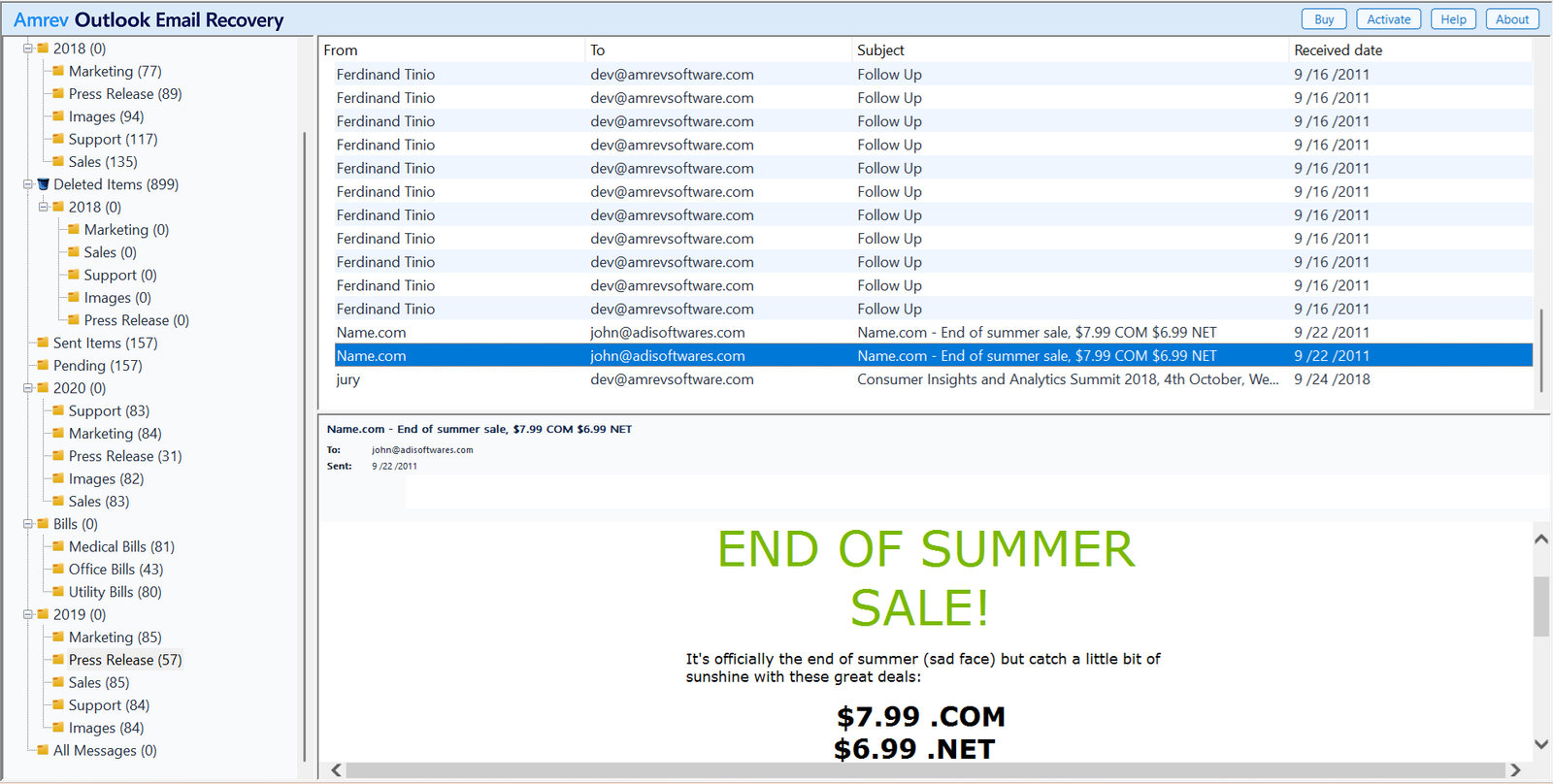
The application scans the entire mailbox structure rather than only the mail folders. Let the scan finish, then inspect the Tasks and Notes folders and verify individual items.
Select the data file and destination
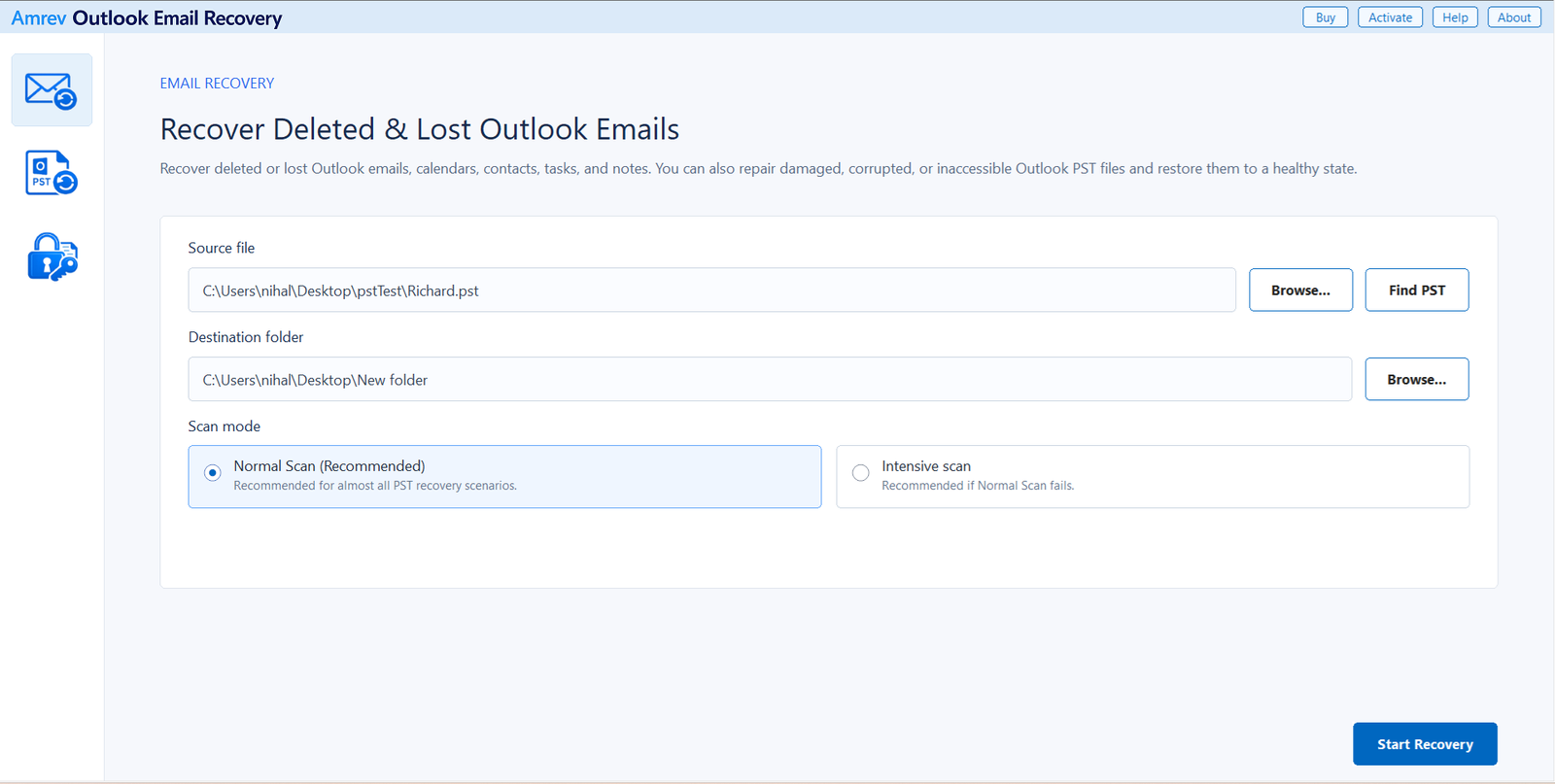
Open Amrev Outlook Email Recovery and choose Browse beside Source file. Select the copied PST, or use Find PST if its location is unknown. Choose a separate destination folder for the recovered PST. Start with Normal Scan; use Intensive Scan if the expected items are not found or the data file is badly damaged.
Run the scan to completion
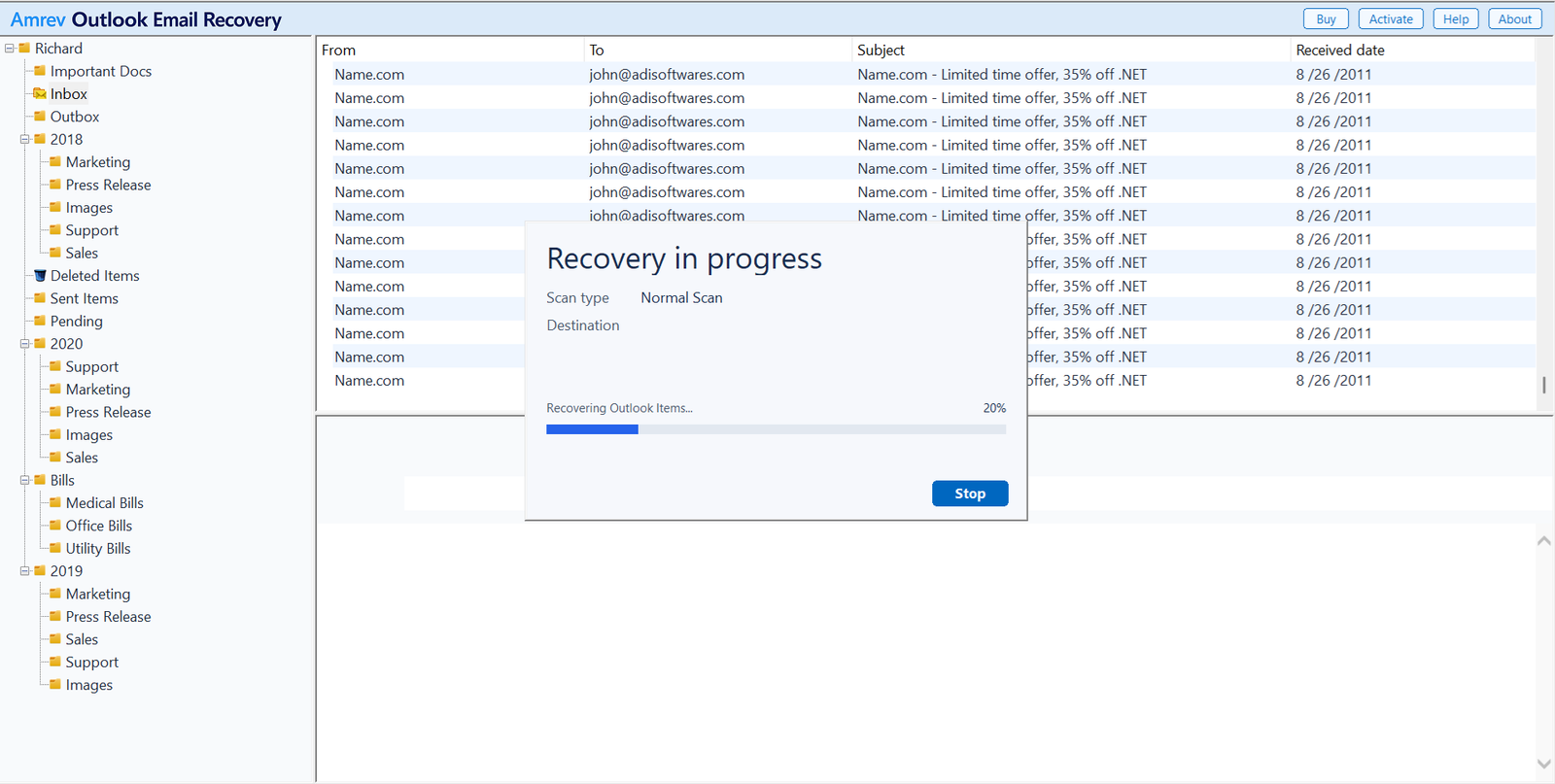
Choose Start Recovery. The folder tree fills as the data file is read. Tasks and Notes may appear after the mail folders, so wait for the full scan rather than stopping when the Inbox becomes visible.
Inspect the recovered Tasks and Notes folders
For tasks, check the subject, status, priority, start date, due date, completion date, reminder, categories, notes, and attachments. For Outlook notes, verify the title, body text, color, and modified date. Check more than one item before judging the result.
Open or import the new PST
When recovery finishes, the new PST is already in the destination selected in Step 1. There is no separate save step. The full version writes recovered tasks, notes, emails, and other mailbox items to this file. The PST created by the trial contains no actual recovered Outlook items.
Scan a copy of your Outlook Data File (PST)
The trial can show the recovery result, but its generated PST contains no actual tasks, notes, or emails. The full version creates the PST with recovered mailbox data.
Check filters after opening the recovered PST
A recovered Tasks folder can still look empty if Outlook applies a view that hides completed or overdue items. Open the folder, reset its view, and switch to a simple list before comparing it with the recovery result.
Open the recovered PST as a separate data file first. Once you have checked the important task dates and note text, import only the folders or items you want to keep. This reduces the chance of creating duplicates in your main mailbox.
Frequently asked questions
Can deleted Outlook tasks be recovered?+
They may be recoverable if their records remain in the PST. Continued use or compaction can overwrite deleted data, so close Outlook and work from a copy promptly.
Can Outlook Notes be recovered from a PST?+
Yes, when the note records remain recoverable in the PST. Outlook Notes are separate from OneNote pages and Windows Sticky Notes.
Will this recover tasks from Microsoft To Do?+
This process recovers items stored in a PST. For synchronized Microsoft 365 or Exchange tasks, check Microsoft To Do and Outlook on the web first.
Should I use Normal Scan or Intensive Scan?+
Start with Normal Scan. Use Intensive Scan if Tasks or Notes are missing from the result or the Outlook data file is severely damaged.
Does the trial PST contain recovered tasks and notes?+
No. The trial can scan the data file and show the recovery result, but its generated PST contains no actual recovered tasks, notes, or emails. The full version writes recovered Outlook data to the new PST.